

Unclaimed: Are are working at Loom ?
Loom Reviews & Product Details
Loom is a video-making platform that is designed to help businesses facilitate better and more efficient workplace communication through video and screen recording. It empowers users to use a web-based interface that supports screen recording and screen capture, shared via a link for easy viewing.

| Segment |
Small Business
Mid Market
Enterprise
|
|---|---|
| Deployment | Cloud / SaaS / Web-Based, Desktop Mac, Desktop Windows, Mobile Android, Mobile iPhone |
| Support | 24/7 (Live rep), Chat, Email/Help Desk, FAQs/Forum, Knowledge Base, Phone Support |
| Training | Documentation |
| Languages | English |
Loom Pros and Cons
- Dedicated mobile apps for Android and iOS
- Quick screen recording with handy webcam overlay
- UI is clean and easy to navigate
- Loom Chrome extension has multiple recording options
- Transcripts aren’t always accurate
- The free version restricts videos to five minutes


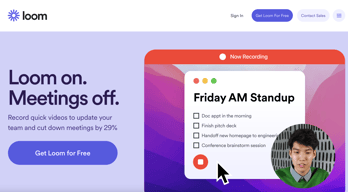

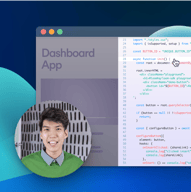
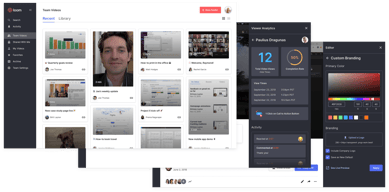

With remote and hybrid work now standard across industries, the way teams communicate has fundamentally shifted.
The distributed nature of the workplace today means companies need to invest in new tools to keep their staff aligned and connected. Whether you’re sharing messages in Slack, or video conferencing in Microsoft Teams, you’re probably already investing in tools that will support the change landscape of work.
Loom is quickly emerging as one of the most valuable platforms in remote and asynchronous work. It focuses on allowing users to capture video content, screenshots, and other information for recipients to watch whenever they choose. This can be a lot easier for teams looking to communicate when other staff members aren’t available for a real-time video call.
Today’s Loom review will explore everything you need to know about leveraging this video and screen-capture tool for the age of asynchronous and remote work.
Loom Pros and Cons
Loom Features
Loom is the leading video communication platform for asynchronous work. In October 2023, Loom was acquired by Atlassian, expanding its integration with tools like Jira and Confluence. Designed for speed and simplicity, the solution allows you to record, share, and interact with videos. Millions of users across hundreds of thousands of companies use Loom to work more collaboratively.
The primary features of Loom include:
- Screen recording: Record your camera, screen, or both simultaneously to share useful insights with your colleagues wherever they are.
- Chrome extension and desktop app: You can record videos with up to 4k quality with a desktop app, or leverage 1080p recording with the Chrome extension.
- Video stitching: If you need to record multiple videos for a tutorial or guidance for another employee, you can stitch them together into a full video.
- Screenshot: If videos aren’t necessary to share contextual information with a co-worker, you can take a simple screenshot and share that through the cloud instead.
- Automatic transcriptions: Using AI technology, Loom can transcribe your video, making it easier to access to a wider range of viewers.
- Filler word removal: If you’re worried about the number of “uhs” and “umms” included in your video content when sharing with a manager or supervisor, remove them with one click.
- Video hosting: Cloud-based video hosting is included with Loom, so you can store your content in an easily-searchable place. This is ideal for sharing the same video with more people, or checking back over previous videos.
- Backgrounds and frames: Add some personality and branding to your looms with custom backgrounds and designs. This can be a great way to make your videos more fun.
- Comments and reactions: Your colleagues can react to your looms with emojis, or leave comments and annotations to keep the conversation going.
https://www.youtube.com/embed/N1FPPYhZQoE?feature=oembed
How to Get Started with Loom
One of the things that makes Loom so compelling to modern workforces is how easy it is to use. It only takes a few seconds to sign up with Loom using your Google, Slack, or Apple ID. You can also create an account with an email address or SSO.
Once you’ve created an account, you can simply install your application onto your device. Downloads are available for Windows and Mac, and you can get the iOS or Android app directly from respective app stores. There’s also a Chrome extension for Loom.
 _Mac OS app allows to record videos straight from the menu bar_
After installing the application, you’ll have to make sure you enable permissions for recording from your microphone, webcam, and screen. The desktop application will appear in your system tray or menu bar, so you can start recording with one click. There’s also the option to set up keyboard shortcuts.
When you’re fully setup, you can start recording your videos instantly. By default, the app records your screen with a webcam overlay, but you can also choose to record your face or screen individually. The iOS version of Loom does not allow for recording both your webcam and your screen at once, however.
Before you begin recording, you’ll be able to reposition and resize the webcam overlay, and choose whether you want to capture a portion of your screen or the whole thing. You can also decide whether to record system audio alongside your voice.
When you’re done recording, the entire video will automatically upload to the Loom cloud environment, and be accessible through your account. Here, you can edit the video in various basic ways, such as stitching different pieces of content together, cutting out the parts you don’t need, and adding “call to action” buttons which popup for users after the video finishes.
 _‘Looms’ are stored in the cloud making them easily available for your team_
Notably, every video created with Loom is automatically made “public”. You can share the link to anyone, and they’ll be able to watch it without signing up for an account. The share button also offers one-click sharing for social media, and access to code for embedding videos on a website. The Chrome Extension will also automatically convert videos into embedded content for Google Doc, JIRA, Gmail, and GitLab.
Users viewing your video can speed up playback, react with emojis throughout the viewing process, see an automatic transcript, and leave comments.
Get started with Loom for free
Loom Pricing
Loom’s pricing structure is relatively straightforward. There are multiple plans to choose from, starting with an attractive free package. Visit Loom’s pricing page for current rates.
Starter
Loom offers a free plan with basic recording capabilities, including screen recording, cam bubbles, privacy controls, viewer insights, and unlimited transcriptions.
Business
The Business plan comes with all the free features of Loom plus unlimited creators and recording lengths. You also get high-def recording up to 4k, drawing tools, custom branding, filler word removal, engagement insights, closed captions, and security features.
Enterprise
Designed for companies with specific recording needs and privacy requirements, the Enterprise plan gives you more advanced admin and security settings, including SSO, SCIM, custom data retention policies, activity log reports, and priority dedicated support.
Loom for Education
If you’re a teacher in the digital world, you can access a specialist plan specifically for education. Loom offers qualified educators access to premium features and unlimited recordings for free.
Loom Alternatives: Your Other Options
Loom is an excellent tool for rapidly creating and sharing video content and screens with your colleagues. It’s easy-to-use, packed full of useful features, and relatively affordable compared to some other options. However, there are other solutions out there.
Some of the most compelling alternatives include:
Slack Clips
<img alt=“Graphical user interface, application
Description automatically generated” src=“https://cms.findstack.com/wp-content/uploads/2022/06/graphical-user-interface-application-description-1.png” width=“2492” height=“1125” loading=“lazy” decoding=“async”>
Slack Clips is the native screen recording feature built into Slack. If you’re already using the Slack service for asynchronous collaboration, it might make sense to choose this product over Loom. With Clips, you can not only capture screen information, but also add voice overs to something, and implement your webcam too.
The Slack Clips feature doesn’t work outside of Slack, so you will need an account to start using the service. Clips can also only be shared in channels or through Slack direct messages. There’s also a five minute limit with no way to increase your recording options.
You’ll also need a paid account with Slack to access this service. Clips is not included as part of the Slack free package.
Dropbox Capture
<img alt=“Graphical user interface
Description automatically generated” src=“https://cms.findstack.com/wp-content/uploads/2022/06/graphical-user-interface-description-automaticall.png” width=“2467” height=“1031” loading=“lazy” decoding=“async”>
If you’re using Dropbox for storing and managing files in the remote working world, you can also tap into one of the most recent features introduced by Dropbox. “Dropbox Capture” automatically uploads the videos you create directly into your Dropbox folder, which makes it ideal for sharing with distributed team members.
Though still relatively new to Dropbox, the Capture function offers many of the same features as Loom, including the option to take a screenshot, record your screen, or combine your screen recording with a view of your webcam. You can also record audio, or make a gif this way.
All of the content you produce will be saved to the Capture folder in your Dropbox account. You’ll also be able to hover over the capture to collect an URL to share with colleagues. The “Markup” feature allows you to draw on your content and add annotations.
Asana
<img alt=“Graphical user interface, application
Description automatically generated” src=“https://cms.findstack.com/wp-content/uploads/2022/06/graphical-user-interface-application-description-2.png” width=“2266” height=“1097” loading=“lazy” decoding=“async”>
Another option for those who already have a dedicated productivity and collaboration tool in place with their team, Asana comes with a range of “add-on” features for screen recording and video. One of the most common options is the “Coview” service, which allows you to create detailed videos and screen recordings with a couple of clicks.
You can also use Coview as part of your customer service strategy, allowing customers to capture information and code-level insights into any problem they’re having. All of the content is stored to your Asana account, where you can export screenshots and recordings as Asana tasks.
While the features aren’t exactly the same as the ones you’ll get from Loom, they’re pretty straightforward, and ideal for customer service teams.
Mac and Windows Screen Recording Tools
If you want to avoid adding any more apps to your workplace, or you need to keep your budget as low as possible, Mac and Windows devices also have some of their own screen capturing options. You can capture an entire screen, window, or portion of a screen on a Mac by pressing shift, command, and 3 together on your device.
<img alt=“Graphical user interface, text, application, website
Description automatically generated” src=“https://cms.findstack.com/wp-content/uploads/2022/06/graphical-user-interface-text-application-websi.png” width=“1514” height=“805” loading=“lazy” decoding=“async”>
The QuickTime player on Mac also allows you to capture video recordings of your computer screen. Simply open the QuickTime player, then click on “File”, then “New Screen Recording”. You’ll be able to control exactly which portion of the screen you want to record, and decide whether you want to include your pointer in the recording.
On Windows, the best way to capture screen recordings is with the “Game Bar”, built for Xbox consoles. You can access this feature by going into “Settings > Gaming > Xbox Bar”. From there, enable the Xbox Game Bar, and you’ll be able to start recording videos or taking a screenshot with the click of a button. You can also trigger the game bar with shortcuts.
<img alt=“Graphical user interface, application
Description automatically generated” src=“https://cms.findstack.com/wp-content/uploads/2022/06/graphical-user-interface-application-description-3.png” width=“1936” height=“880” loading=“lazy” decoding=“async”>
You should be able to record activity in most windows and applications with Game Bar, and there are various tools for allowing you to adjust your recordings, adding audio, and reducing the size of your screen.
Loom Review: Finishing Thoughts
For capturing asynchronous video messages, screenshots, and screen recordings, Loom is one of the simplest tools on the market. It’s ideal for beginners who want to be able to capture quick videos to share with colleagues in an instant. The fact that other people don’t need an account to watch your videos can make it much easier to collaborate with Loom.
Share your experiences with the Loom app in the comments below, and let us know if you prefer any of the alternative options available today.

Easy to use, especially when starting a video recording. Easy to share and works great also with Slack.
Time limit on starter plan but also great amount of free videos on this plan.
Avoid video calls by explaining something and sharing it to the team. Makes me more productive by saving me a lot of time.

Easily make high quality desktop recordings. Even just using the free version, you can make great looking how to videos from any computer. It's very easy to just hit record and make a video without any other software.
It can be difficult to output the video so it can be editted or included in another video. The built in editting tools are not very powerful, even just to remove a stub from the beginning or end.
We often get the same question over and over asking how to do something in a piece of software. This allows us to create a one and done answer that is reusable. It's a huge time savings for us and customers can refer back to the video whenever.
I love yo record sessions about new products, reviews and even a little monologue for later. It has helped me take control of the digital tasks and show clients and coworkers our products. i I loved the trial because it helped me get an overall look at Loom. I really like the record settings available, from recording my pc or an specific app.
The presets of the webcam ie. Height, width or position in canvas feels simple but sometimes you want to put in an specific location or size, and it doesn't let you. Sometimes I just record the screen because I'm not satisfied with the webcam options.
It has helped me get through a presentation or sheet that need a previous explanation. Also, it has helped me and my team get introductive videos for clients for our products.
I love how simple and organized this product is. Creation of videos is easy and straightforward. Attractive and user-friendly interface. Readily available and compatible with all devices.
At the moment none. I have not come across a dislike worth addressing.
I use it to create professional as well as attractive videos for my business and organisation.
I enjoy the ease of use when I'm on my calls, and I really enjoy how I'm able to search through the transcript almost immediately after my call has been completed. It's been absolutely instrumental!
I dislike how sometimes the audio from my other participants/other audio on the call isn't captured even if I have the proper settings enabled (as outlined in your help center docs)
Recording my remote calls hosted on other platforms & walking through my platform's Onboarding processes.
I love that I can record on my computer and my phone and share the videos quickly with a link!
I wish the Android recordings didn't show the start/pause buttons on it. it would be better if it was like ios recordings - nice and clean.
makes it easier to communicate - especially with people with a language barrier - they can connect the words with a visual at the same time.
You can connect with people in spite of their busy schedules. Video gives you a way to ensure the message is clear and correct.
None. Look has been aggressive when it comes to user feedback and developing solutions for their users.
Effective communication with parties that have conflicting schedules. I can send and explain quotes to my customers, be notified when they watch them and follow up.
From my extension, I'm recording in less than 3 clicks. The UI is super intuitive and not busy. Love the easy way to delete videos now and super easy to share. I'm a huge fan
Removing clips from the videos is a bear :(
Helping me explain something to Customers, and colleagues
Seamless and effective. I learned it within 20 minutes and was able to start saving time by recording an issue that would have normally been a 30 minute meeting.
I have honestly found no issues at the moment.
The ability to seamlessly communicate an issue without having to meet with any team members for a 'meeting'. Using Loom saves me TIME.
It's all a simple to use and intuitive, and allows me to instruct my team or share information efficiently without the need for meetings.
Occasionally, it takes a while to load, or I have to click the create a new video multiple times in order to start recording.
It allows asynchronous working and to distribute training videos very easily.


