


Best VPS for Beginners: Ranked on How Easily You Can Undo a Mistake




You are going to lock yourself out of your first server. Almost everyone does, and it’s usually the same mistake: you enable a firewall, you don’t allow port 22, and the SSH session you’re typing in dies the moment the rule applies. The server is fine. It’s running perfectly. You just can’t reach it.
That moment — not signup, not the pricing page — is where beginner-friendly hosting is actually decided. So rather than compare control panel screenshots, this ranking scores providers on the things that matter when something goes wrong:
- Are backups on by default, without you knowing to enable them?
- Is there an out-of-band console that works when the network doesn’t?
- Is there a rescue mode for a server that won’t boot?
- Can you snapshot before experimenting, and roll back if it goes badly?
- Can you skip the hard part entirely with a one-click install?
The results reorder the usual list — most notably, the provider with the best recovery tooling in the business also has the most dangerous default setting.
The scorecard
| Provider | Backups by default | Out-of-band console | Rescue mode | One-click apps |
|---|---|---|---|---|
| Hostinger | ✅ Weekly, included | ✅ Browser terminal | ✅ Emergency mode + fsck | ✅ |
| ScalaHosting | ✅ Daily, included | ✅ | ✅ | ✅ |
| DreamHost | ✅ Daily, 14–30 day retention | ✅ | ✅ | ✅ |
| Cloudways | ✅ Every 24h (offsite extra) | ✅ Managed platform | ✅ | ✅ |
| InMotion | ✅ Included | ✅ | ✅ | ✅ |
| Bluehost | ✅ Included | ✅ cPanel | ✅ | ✅ |
| DigitalOcean | ❌ Off — costs 20–30% extra | ✅ Best-in-class | ✅ Recovery ISO | ✅ |
Checked August 2026.
The default that catches people out
DigitalOcean’s backups are not enabled by default. You have to know they exist, find the toggle, and accept the surcharge — 20% of your Droplet’s monthly price for weekly backups, 30% for daily.
This is entirely reasonable for the audience DigitalOcean built for, who manage backups deliberately and often externally. It is a poor default for a beginner, because the person most likely to destroy their server is the person least likely to have gone looking for a backup setting. A $6 Droplet with no backups is a $6 Droplet you can permanently lose.
Compare the alternatives:
- ScalaHosting — daily cloud backups included free on every managed VPS, with restores at no extra cost
- DreamHost — daily automated backups, 14–30 day retention, on all plans
- Hostinger — weekly automatic backups included, plus one free snapshot
- Cloudways — automated backups every 24 hours, though offsite storage is charged separately (around $0.033/GB)
If you’re new, buy from someone whose backups are already running. It is the single highest-value item on this page, and it costs nothing to get right at purchase time.
One caveat on Hostinger’s snapshots, since it’s easy to misread: the free snapshot is one snapshot. Creating a new one overwrites the previous, and they auto-delete after 20 days. It’s a fine “before I try something risky” tool, not a backup history.
The lockout, and how each host gets you back in
An out-of-band console connects to your server the way a keyboard and monitor would, bypassing the network entirely. It’s what saves you from the firewall mistake, and it’s the feature least likely to appear on a pricing page.
DigitalOcean’s Recovery Console is the best implementation here. Its documentation describes it precisely: it “provides out-of-band access and is available regardless of your network settings. It emulates the access you would have if you were sitting down with a keyboard and monitor attached to the actual server.” A Recovery ISO backs it up, letting you boot into a rescue environment to run fsck or chroot into a broken system.
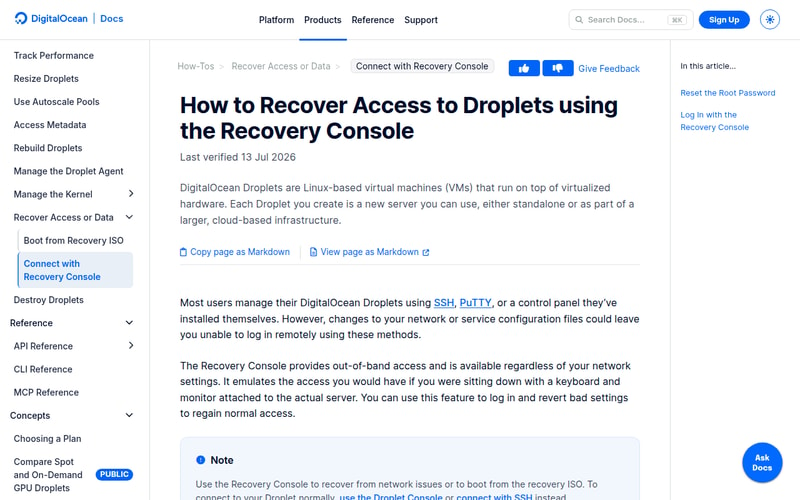
Worth bookmarking before you need it. Note “Last verified 13 Jul 2026” — DigitalOcean dates its documentation, which is rarer than it should be.
It also has a trap worth knowing in advance: your own firewall can block DigitalOcean’s console. The console is served from DigitalOcean’s infrastructure, so an aggressive inbound rule can lock you out of the recovery tool as well as the server. The fix is to temporarily add a rule allowing all inbound TCP, use the console, then remove it — which is straightforward once you know, and bewildering at 1am when you don’t.
Hostinger’s browser terminal takes the opposite approach: it drops you into a root shell from the dashboard with no SSH client, no key management and no PuTTY. For a beginner this removes an entire category of problem — most first-server frustration is SSH key configuration, not Linux. It also has an Emergency Mode with fsck for filesystem corruption.
Managed hosts — Cloudways, ScalaHosting, InMotion, Bluehost — mostly sidestep the question. You’re less likely to lock yourself out because you’re less likely to be configuring a firewall by hand, and when it happens, support will fix it. As our managed VPS comparison sets out, that support stops at your application code, but server-level lockouts are squarely inside it.
The seven providers
1. Hostinger — the shortest path to a working server
Hostinger is the default recommendation for a first VPS, and the reasons are practical rather than promotional.
The browser terminal means you can administer the server without installing anything or generating an SSH key. Weekly backups run without you configuring them. A free snapshot lets you checkpoint before trying something. The one-click application catalogue deploys the common stacks — including Docker, n8n and agent frameworks — in a few clicks rather than a 40-minute shell session. And the plan range starts at 4GB, so you’re unlikely to hit a resource wall in month one.
It’s also the cheapest way into a managed-feeling experience, though it’s worth being precise about the label: Hostinger’s VPS is technically unmanaged with a very good panel on top. Support is responsive but will generally point you to a tutorial rather than log in and reconfigure your server. For most beginners that’s the right trade at this price.
The honest caveat: the entry plans give you fewer vCPUs than equivalently-priced competitors — 2 vCPUs at the 8GB tier where Hetzner, Contabo and IONOS all give 4. That matters if you’re running many containers, and doesn’t if you’re running a website.
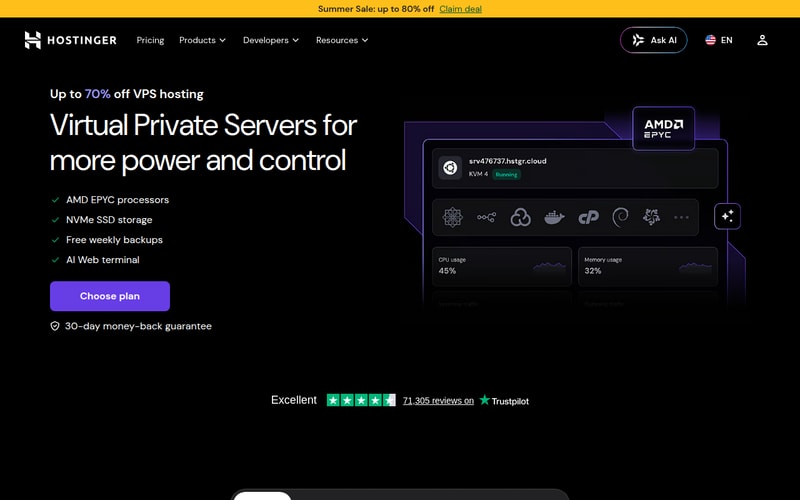
“Free weekly backups” and “AI Web terminal” are the two bullets that matter for a first server — one is your undo button, the other is how you get in without configuring SSH.
Check Hostinger VPS pricing → · Read our Hostinger review
2. ScalaHosting — best safety net
Daily backups included free, restores at no charge, and SPanel — a full control panel bundled rather than billed per account as cPanel is.
For a beginner, daily beats Hostinger’s weekly by a meaningful margin: the difference between losing a day of work and losing a week. Add genuinely managed support that covers OS-level issues, firewall configuration, malware scans and migrations, and it’s the most forgiving option here for someone who expects to break things.
The trade-off is SPanel’s smaller ecosystem. It’s cleaner and faster than cPanel, but when you search for a tutorial you’ll find fewer of them, and most third-party guides assume cPanel.
Check ScalaHosting pricing → · Read our ScalaHosting review
3. DreamHost — strong defaults across the board
Daily automated backups with 14–30 day retention, unlimited free SSL, DDoS protection and a web application firewall, all included rather than sold as add-ons.
That retention window is the standout. Many beginner disasters aren’t noticed immediately — a bad configuration change or a compromised install can sit unnoticed for a week. A backup history measured in weeks rather than days is what lets you go back to before the problem, instead of back to yesterday’s copy of the problem.
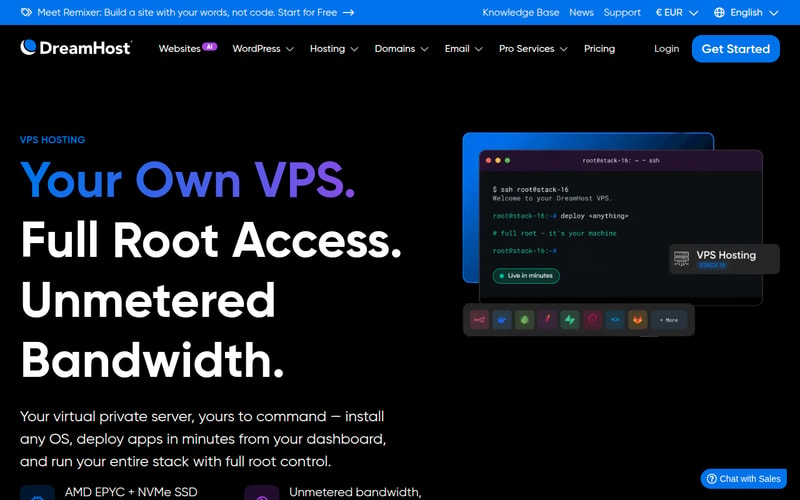
DreamHost also markets unmetered bandwidth on its VPS range, which is a genuine selling point provided you read it as “no volume meter” rather than “no limit” — our unmetered bandwidth guide covers what that phrase commits a host to.
Check DreamHost pricing → · Read our DreamHost review
4. Cloudways — for people who want a website, not a server
Cloudways is managed hosting on infrastructure you choose — DigitalOcean, AWS, Google Cloud, Vultr or Linode — with staging environments, one-click backups every 24 hours and free migration.
It belongs on this list for a specific type of beginner: someone whose actual goal is a working website and who has no interest in learning server administration. You never touch a firewall rule, so you never lock yourself out of one. Note that offsite backup storage is charged separately, and that support covers the platform rather than your application.
Check Cloudways pricing → · Read our Cloudways review
5. InMotion Hosting — two hours of a real sysadmin
Everything shipped on the VPS is supported — cPanel, Apache, PHP, MySQL — and the plans include Launch Assist: two hours with trained system administrators who will migrate your site, install and configure software, harden security or set up server tasks.
For a beginner that is arguably the most valuable inclusion in this entire comparison. Two hours of competent help at the moment you’re stuck is worth more than a year of documentation, and it’s roughly $100 of time included in the plan.
Check InMotion Hosting pricing → · Read our InMotion review
6. Bluehost — cPanel and familiarity
Bluehost’s appeal for beginners is that everything is where the tutorials say it is. cPanel is the most documented control panel in existence, so when you search for how to do something, you’ll find a guide with screenshots that match your screen.
Its VPS entry plans are light on resources compared with the European hosts, and upselling is persistent. But for someone stepping up from shared hosting who wants nothing to feel unfamiliar, that continuity has real value.
Check Bluehost pricing → · Read our Bluehost review
7. DigitalOcean — the best documentation, the worst defaults
DigitalOcean’s tutorials have taught a large share of the industry how to run a Linux server, its Recovery Console is the best-implemented on this list, and its API and dashboard are genuinely excellent.
It’s ranked last for beginners specifically, for two reasons. Backups are off by default and cost 20–30% extra, which is the wrong default for someone who doesn’t yet know what they don’t know. And a Droplet is a bare Ubuntu box — there’s no control panel, so your first task is a shell session, not a form.
If your goal is to learn Linux, invert this ranking and start here; the documentation is the best teaching resource in hosting. If your goal is a working website this month, start at the top of the list. Just turn backups on either way.
Check DigitalOcean pricing → · Read our DigitalOcean review
Do you need a VPS at all?
Worth asking, because a meaningful share of people searching this term don’t.
Buy shared or managed WordPress hosting instead if you want to run one or two WordPress sites, you don’t need to install software beyond plugins, and the phrase “SSH into the box” doesn’t appeal. You’ll pay less and administer nothing.
Buy a VPS if you need to run software that isn’t a website — an agent, a bot, a game server, n8n, Docker containers — or you need root access, or you’ve genuinely outgrown shared hosting. Those are the cases where the control is worth the responsibility.
The honest version: a VPS is a computer you are now responsible for. Most of this article is about making that responsibility survivable.
Five things to do in your first hour
- Confirm backups are running. If you bought DigitalOcean, enable them now. Everywhere else, verify rather than assume.
- Take a snapshot before you change anything. Free on most plans, and it’s your undo button.
-
Allow SSH before enabling the firewall.
sudo ufw allow OpenSSHthensudo ufw enable— in that order. This is the mistake. - Open the recovery console once, while everything works. Find it, log in, confirm you know how. Discovering it exists is much easier when you aren’t panicking.
- Create a non-root user with sudo, and stop working as root.
How we picked
We scored providers on recovery and defaults — backups enabled without action, out-of-band console access, rescue modes and one-click deployment — using provider documentation and support articles read in August 2026. Backup default status and pricing come from each provider’s own documentation.
We have not run stopwatch tests of signup-to-live-site across these providers, and we’d be wary of anyone publishing that as a headline number: it depends far more on the individual and what they’re deploying than on the host. What we can verify is what happens when something breaks, which we think is the more useful comparison anyway.
Most links here are affiliate links. Note that the two providers with the strongest backup defaults, ScalaHosting and DreamHost, rank above several better-known names on the strength of that alone.
FAQ
Is a VPS too hard for a beginner?
Not with a control panel. A managed VPS with a panel is roughly as difficult as shared hosting for common tasks, and the one-click installers remove the hardest part. A bare cloud instance with no panel — DigitalOcean’s default — genuinely is a step up in difficulty, and that’s a deliberate product choice rather than a flaw.
What happens if I lock myself out of my VPS?
Use the out-of-band console from your provider’s dashboard, which connects like a physical keyboard and monitor regardless of network or firewall settings. Every provider here has one. Find it before you need it — and note that on DigitalOcean an overly strict firewall can block the console itself, in which case you temporarily allow all inbound TCP, fix your rules, and remove the temporary rule.
Do I need to know Linux to use a VPS?
Less than you’d think if you pick a panel-based host, and quite a lot if you pick a bare cloud instance. Panels handle sites, domains, SSL, databases and email through a web interface. You’ll still meet the command line eventually, but it can be gradual rather than immediate.
How much should a first VPS cost?
$5–10 a month covers a genuinely capable server — 4–8GB of RAM, enough for a website plus a database with room to spare. Don’t over-buy: every provider here lets you resize upward, and resizing up is far easier than getting a refund for capacity you never used.
Which control panel is easiest for beginners?
cPanel has the most third-party tutorials, which matters more than interface quality when you’re searching for help. hPanel and SPanel are cleaner and faster but less documented externally. If you expect to learn from YouTube and blog guides, cPanel’s ubiquity is a genuine advantage.
Should I start with the cheapest plan?
Start small, but not at the very bottom. A 1–2GB plan will run out of memory as soon as you add a second service, and diagnosing an out-of-memory kill is an unpleasant first lesson. 4GB is a comfortable floor — our 8GB VPS guide explains what each tier actually holds.

Related Products