

Unclaimed: Are you working at monday.com?
monday.com Reviews: 4.7/5 — Highly Rated
monday.com packages itself as a Work OS built for a new way of working. Providing businesses with a single source of truth, all monday.com products are built on seven building blocks – boards, views, dashboards, integrations, automation, apps, and docs. There are currently five monday.com products, the core being Monday Work Management. The other four are Monday Sales CRM, Monday Marketer, Monday Dev, and Monday Projects. It’s free to use for individual users and paid plans are available on a per-seat basis.
| Company | monday.com |
|---|---|
| Year founded | 2012 |
| Company size | 5001-10,000 employees |
| Headquarters | Tel Aviv, Israel |
| Social Media |

| Capabilities |
API
|
|---|---|
| Segment |
Small Business
Mid Market
Enterprise
|
| Deployment | Cloud / SaaS / Web-Based, Mobile Android, Mobile iPad, Mobile iPhone |
| Support | 24/7 (Live rep), Chat, Email/Help Desk, FAQs/Forum, Knowledge Base, Phone Support |
| Training | Documentation |
| Languages | English |
monday.com Pros and Cons
- Excellent dashboard environment
- Fantastic for beginners
- Range of features like time tracking and budgeting
- Suitable for larger teams
- Built for multiple. users
- No free version
- Basic plan offers very limited functionalities
- Doesn’t offer a Gantt chart view option
- Requires a bit of learning curve –you will need to dedicate time to learning the platform









Project management tools can help you structure your team, improve your workflow, and automate the tedious parts of everyone’s job. They’re indispensable to any team that wants to be productive. So which one should you invest in?
If you’ve ever looked into project management (PM) platforms, you’ve already heard of Monday.com. It’s hailed as one of the best apps in its niche, and it has stellar reviews.
But just how good is it? Is Monday.com the right choice for your business? Let’s find out in this Monday.com review.
Monday.com Quick Overview
Monday.com is a good choice for anyone that wants to bring a bit of structure to their day-to-day operations. From freelancers to big enterprises, Monday has tools and plans for everyone.
That’s not to say it’s a perfect tool. Monday can get expensive for large teams. Plus, people that aren’t tech-savvy might find it hard to get started. But by and large, we recommend it to anyone looking to level-up their productivity with a project management platform.
If you want the full scoop, keep reading this Monday.com review.
Monday.com Features
Each task you track with Monday has its own card. These cards store any data you need, like files, a task outline, updates from management, and even an activity log. All Monday cards are grouped in boards, which are themselves grouped into workspaces.
That’s the basic gist of how Monday works. But you can tweak this simple system quite a lot. Let me show you how.
Boards and Cards
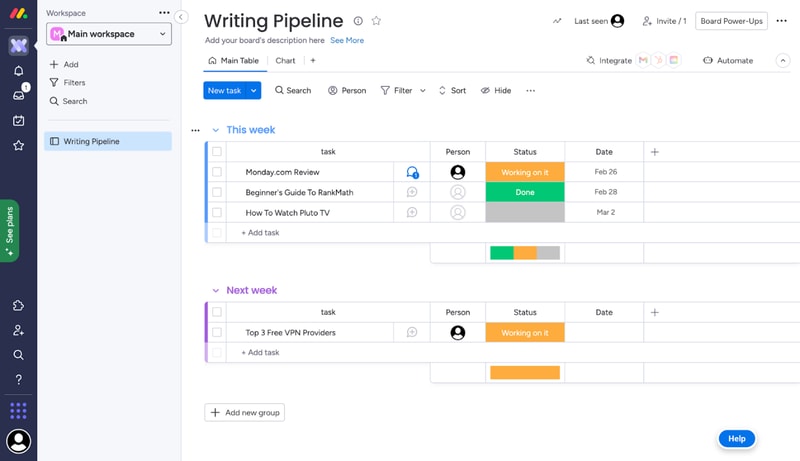
Creating a new board is very easy. You just give it a title, choose a view for the project, and start adding tasks.
When you create your first board on Monday, you’ll get a dedicated guide to set it up.
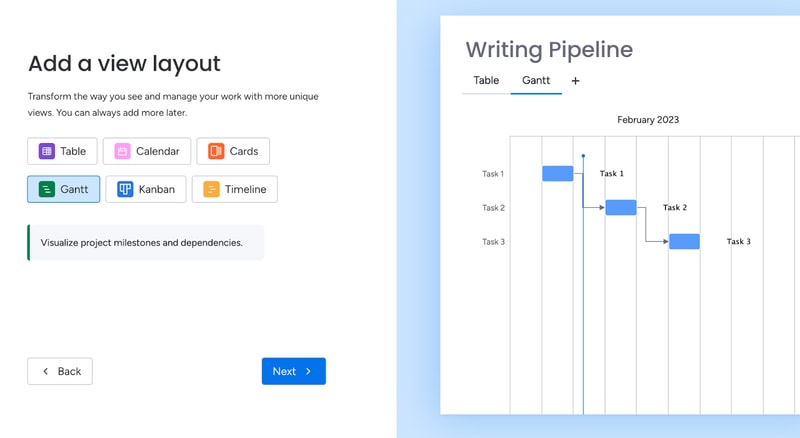
Monday offers plenty of ways to visualize tasks. You can arrange them in a table, in Gantt charts, in Kanban, in a calendar, and more.
As you’re adding cards to your first board, the guide will also give you a preview of how they’ll look:
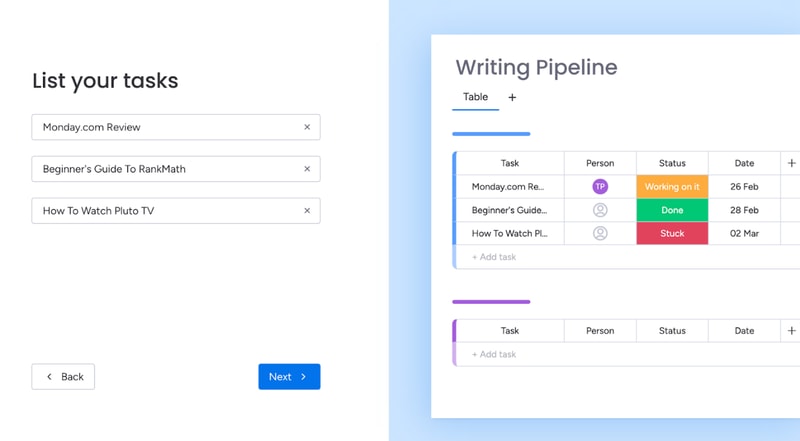
This makes it easy for most people to understand the core functionality of Monday.
You can further bundle cards from the same board in groups. For example, you can group them by what week the tasks are due.
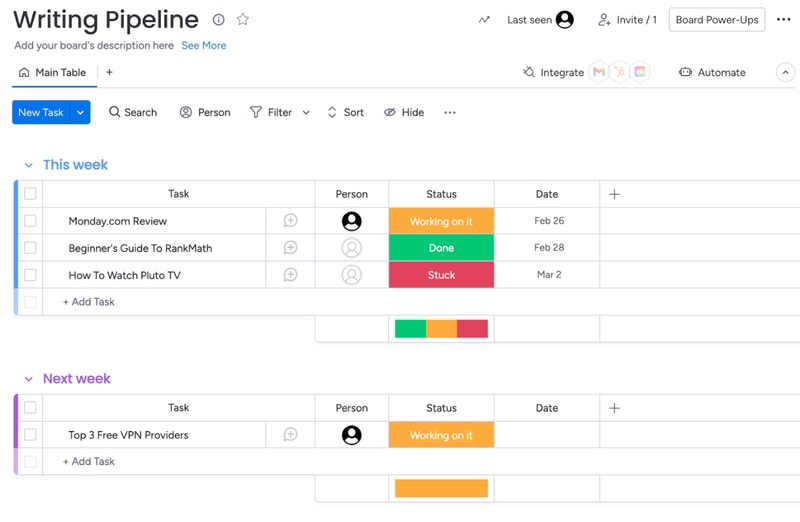
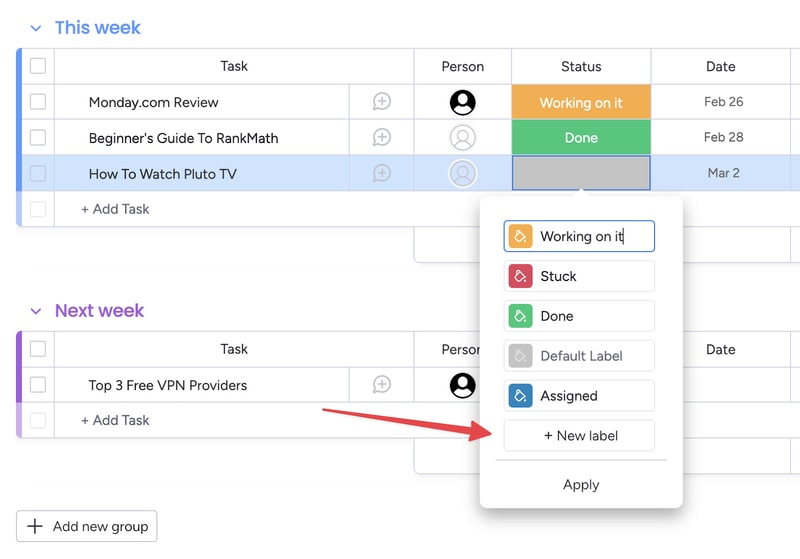
You also get visually-coded statuses for all tasks. The default ones are “Working on it,” “Done,” and “Stuck.” But you can create your own, to further customize your boards:
You can set due dates for all tasks, which helps you keep track of projects. In the Pro plan, you also get advanced time tracking, which lets you visualize how much time you have left before a deadline.
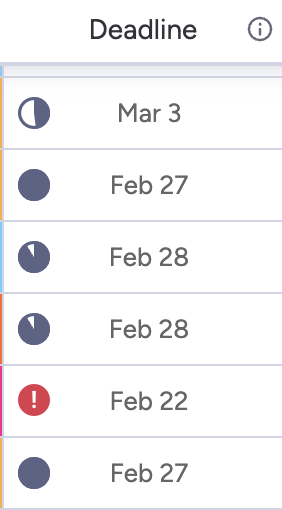
This is useful, but the feature does much more. By tracking time, managers can see the availability of each team member. This makes task allocation much easier.
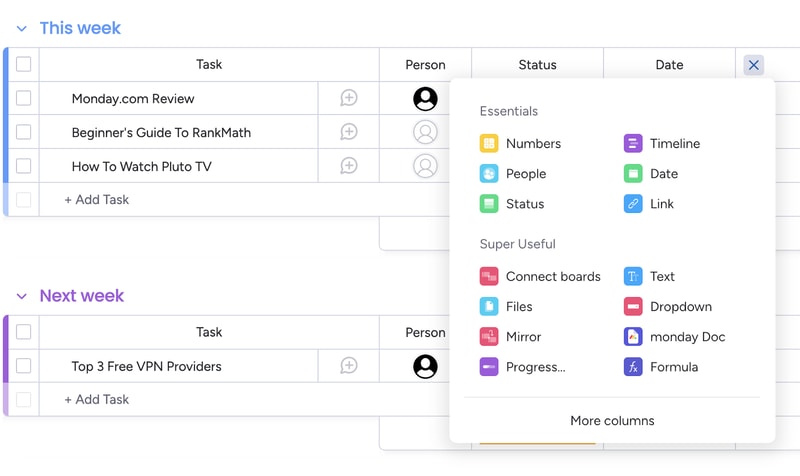
Of course, you can customize the board view in a ton of ways. For example, you can add different columns to the table view:
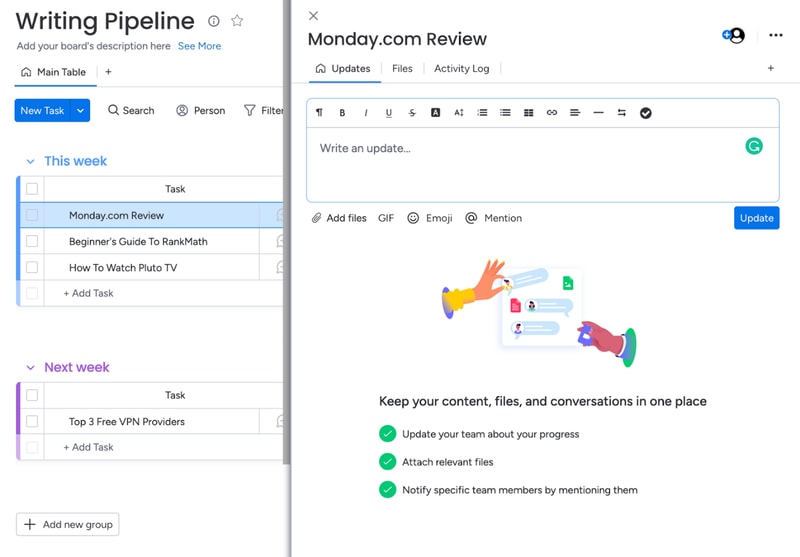
And you can analyze each card individually, to add comments, files, task lists and even check its activity log.
Monday’s core functionality is top-noth. Even beginners can use their project management software to create simple tasks and dashboards. But Monday’s true power lies in its advanced customization options.
Customizability
We’ve used Monday.com for years, and we researched all of its quirks for this review. Throughout all of this experience, Monday’s automation stood out the most. You can easily set-up automated processes with the platform, even if you’re a non-techie:
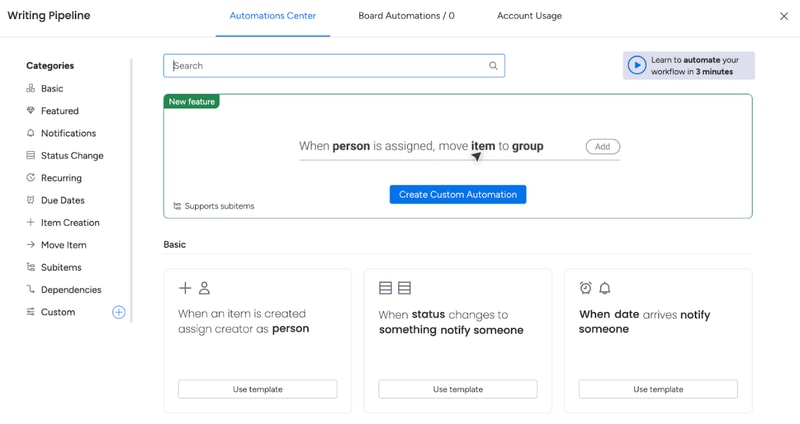
And the possibilities are endless. You get templates for the most commonly-used automations, like notifying someone when a task’s status changes. You also can create your own custom automations, or modify the dozens of templates that are already here.
For example, you can set up an automation that moves a task from one board to another when its status changes and then notifies the person responsible for it. This is useful for tasks that need oversight.
That’s how my editors know to check my work. I change a card’s status to “Needs Review”, and that automatically moves the card to the Editor’s board, and notifies the person that needs to give it a look.
And this is just one example. Monday.com’s automations can do a lot more. And again, they’re extremely easy to create. You don’t need to know any code or use complicated APIs. It’s all made with natural language:
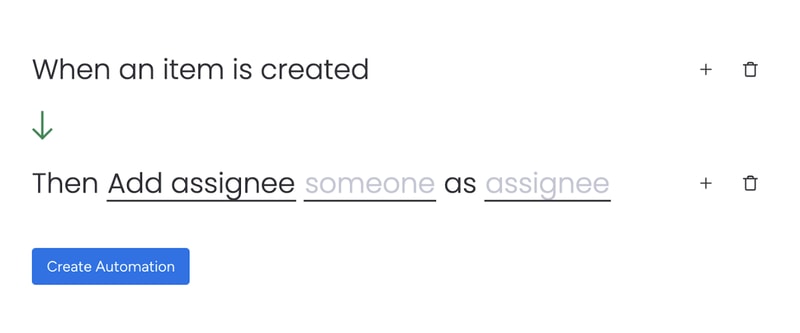
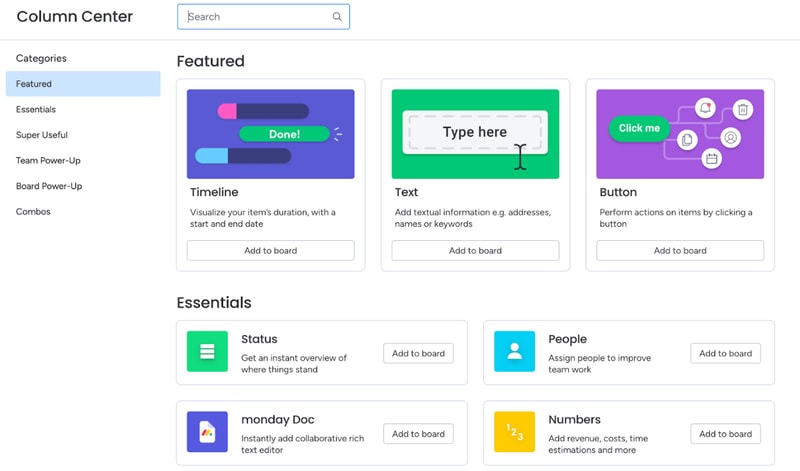
Besides automations, you can also heavily customize board views. You’ve already seen how to add new columns to the table view. But you might be surprised by how many options there are. You can include text, buttons, timelines, numbers, checkboxes, tags, and much more. There are so many options, Monday actually has a dedicated column center.
Each board can have multiple views, which makes dashboards on Monday.com very flexible. For example, team members can use the table view to see task details, deadlines, and manage their work. Managers can use the chart view for the exact same dashboard to get an overview of task statuses and deadlines.
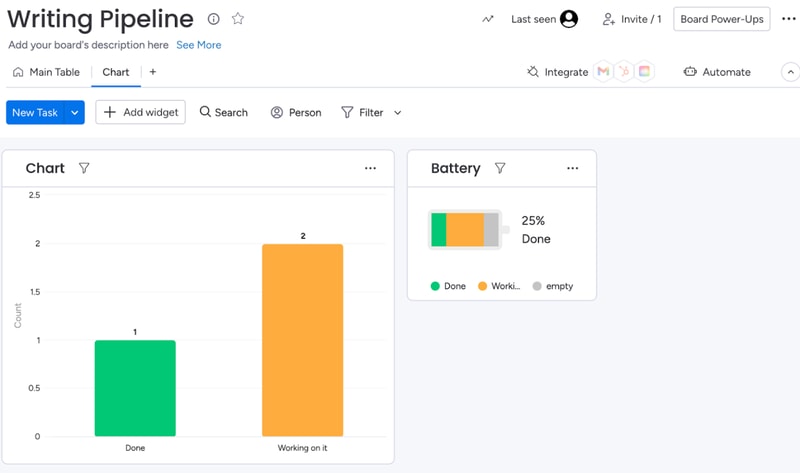
When analyzing a board, you can also filter results by anything (person assigned, status, deadline, etc):
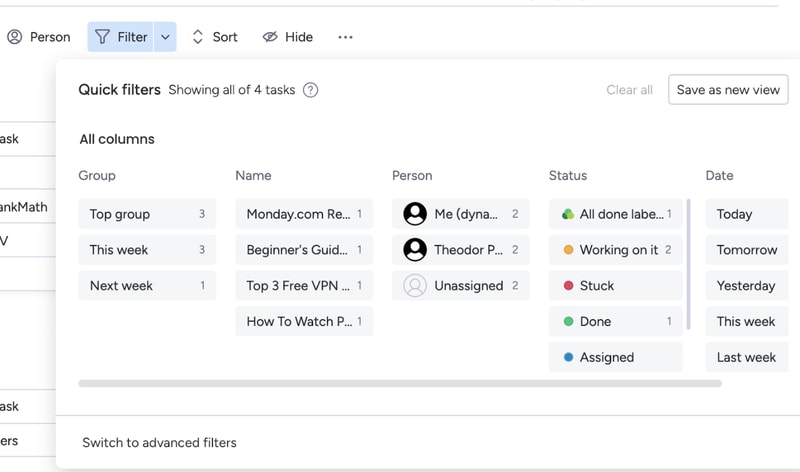
If a filter’s useful, you can turn it into a new view for that board.
All of these options make Monday.com extremely customizable. If you spend some time playing around with its features, you can most likely create anything your team needs. And if Monday’s suite is lacking, you can always complement it with integrations.
Integration with other tools
Monday.com has a lot of integrations. So many, they actually have an entire app marketplace to make it easier to find the extensions you need
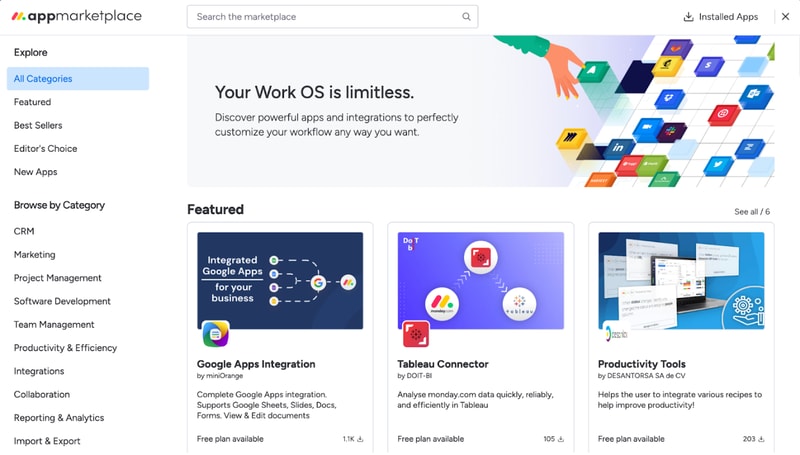
Monday’s integrations let you fine-tune your boards, cards, automations, and more.
For example, the Google Apps integration makes it extremely easy to embed and collaborate on Google Sheets, Slides, Docs, Forms, and more. If you’re using Monday as a CRM, you can use the Tableau Connector for advanced insights into your processes and results.
Not to mention, you can also integrate Monday.com with popular tools like Zapier, Zoom, Google Calendar, and more. These let you automate processes outside of Monday.com, so your team won’t have to worry about repetitive tasks.
Integrations are one of Monday’s biggest perks. The only downside is that you’ll need at least a Standard plan to use them. They’re not available with the free or Basic subscription.
Ease of Use
Monday.com is surprisingly easy to use, especially for how customizable it is. All plans come with onboarding guides, explanation videos, and loads of support articles to help you get started. Enterprise clients even get a customer success manager. They will help you set up all the advanced features, and provide dedicated support no matter what you need.
Even without all of that support, Monday.com is intuitive to use. And that’s mostly thanks to its well-made user interface.
User Interface
Monday.com has one of the best user interfaces out of all project management apps. The design’s smooth, you get color-coded statuses, big buttons, and detailed breakdowns of your tasks.
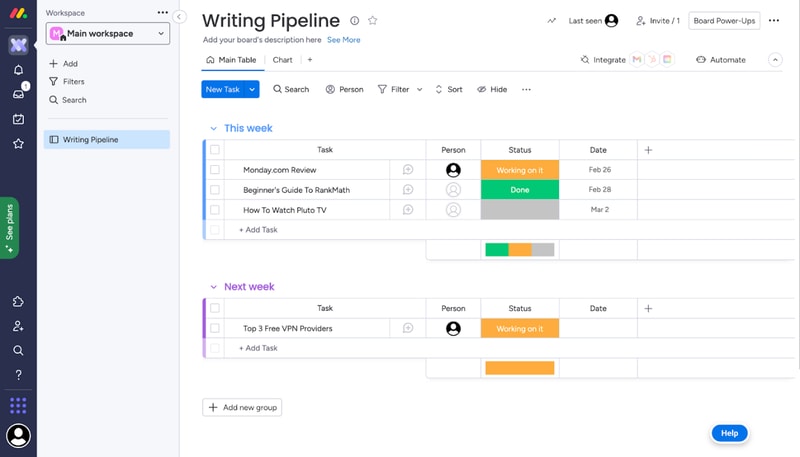
You can quickly switch between views on a board, all the options are pretty intuitive, and you don’t need a degree to find important features. It’s easy to navigate Monday.com even without an onboarding guide.
What we like most is their comments section. All cards have one, where you can write updates about a task, interact with your coworker’s messages, and make notes of everything related to that task.
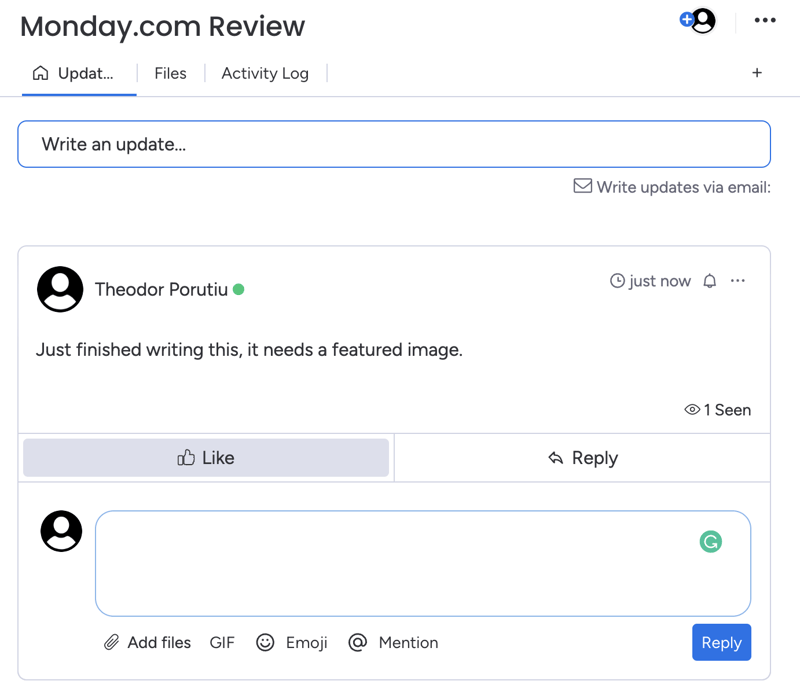
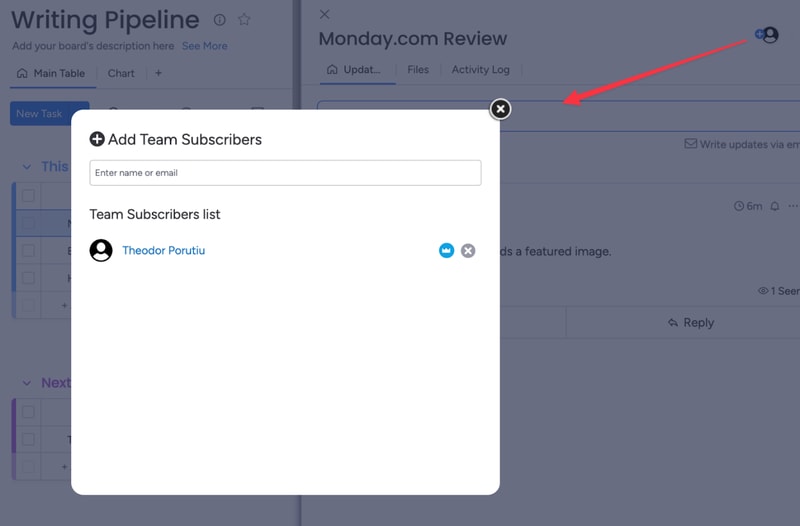
And if you need anyone to join the conversation, you can quickly add them as a card subscriber. This will automatically notify them about any messages.
Getting started and customizing Monday boards – is it easy?
When you sign-up for Monday, you’ll fill in some details about your company, like its size, industry, and what you’ll use Monday for. These choices will affect the features and templates recommended to you, but they won’t limit your tool stack..
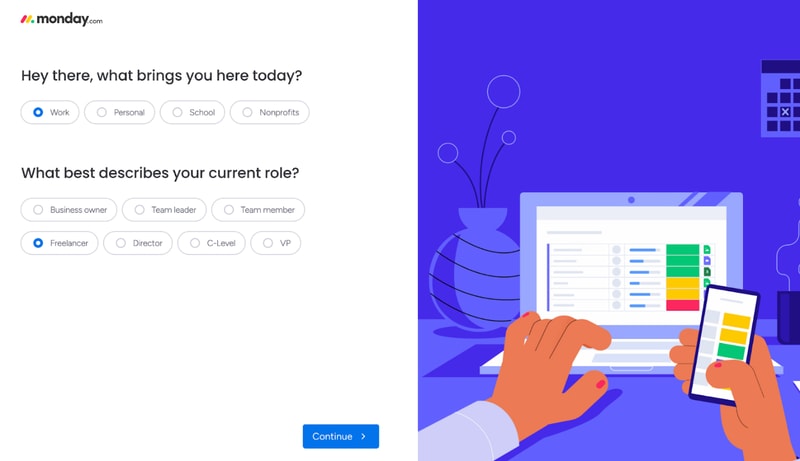
For example, I said I’ll use Monday for operations management. This made my automation recommendations the most commonly used for ops.
After this initial sign-up, you’ll also get a step-by-step guide on how to create boards and cards on Monday.
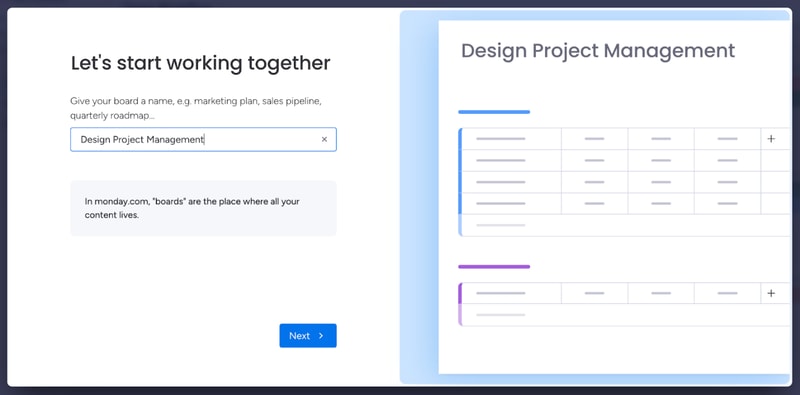
This guide is pretty good to understand how Monday’s core functionality works. If you have minimal experience with project management tools, it’s more than enough. However, it’s not the best if you’re a complete beginner.
You might need more guidance on how each view works, as well as the difference between views, boards, and workspaces. Not to mention, beginners might need a similar startup guide for other features, like automation. All of this support is available in the knowledge center. But it would be better fleshed out in a lengthier onboarding guide.
And we’re not saying this just to pick on Monday. A lot of the complaints you’ll see online about Monday.com mention a steep learning curve. Sometimes, these reviews even complain about the lack of features that are actually there, like more views beyond the default table. A more in-depth start-up guide could solve these issues.
Monday.com Security and Privacy
Monday is pretty serious about its security features. They have a trust center that outlines their stance on security and privacy, as well as a detailed security white paper, which showcases how they protect customer data.
Monday.com uses advanced encryption protocols (especially for Enterprise users) and high-end security methods. They analyze their vulnerabilities weekly and run a bug bounty program to avoid hacks. If you need a secure project management app, this is as safe as it gets.
Lastly, Monday.com collaborates with some sub-processors to collect and process your data. This might worry you, but the third parties are mandated to protect your data under the same terms Monday.com is, so your company is not at a higher risk because of it.
Customer Support
Monday.com has a very well-organized knowledge base, which provides most of the guidance you’ll need to get started with the platform.
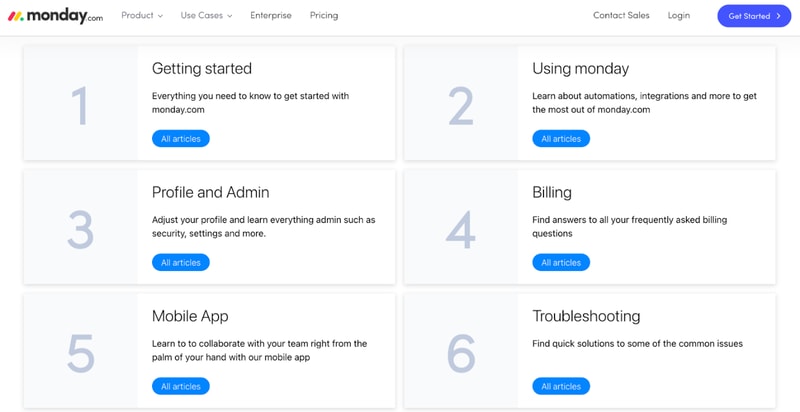
They also have a community where you can post or browse specific questions, a University center to learn more about Monday’s advanced features, and detailed API documentation.
If you need any extra guidance, Monday.com also offers 24/7 live chat support.
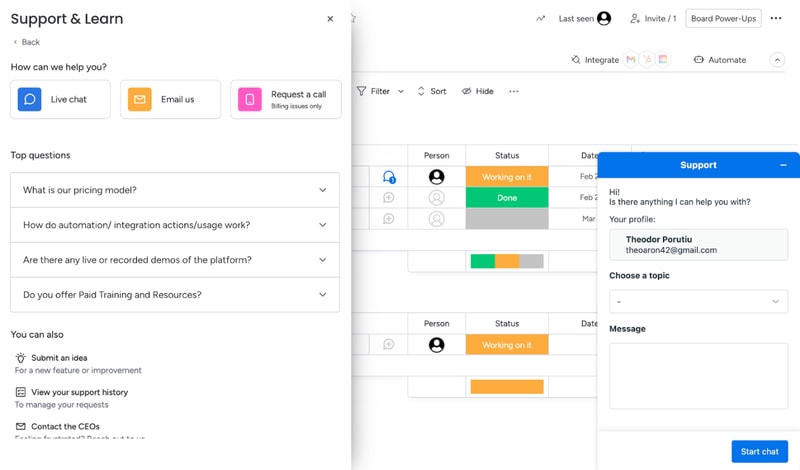
Their agents are prompt and helpful, especially if you’re on a paid plan. That will get you priority support. If your problem’s not urgent, you can also email Monday.com. If you have a billing issue, you can even hop on a call with a Monday agent.
Overall, Monday’s support system is robust. If you run into any problem, you’ll get the guidance you need to keep your project on track.
Monday.com Pricing
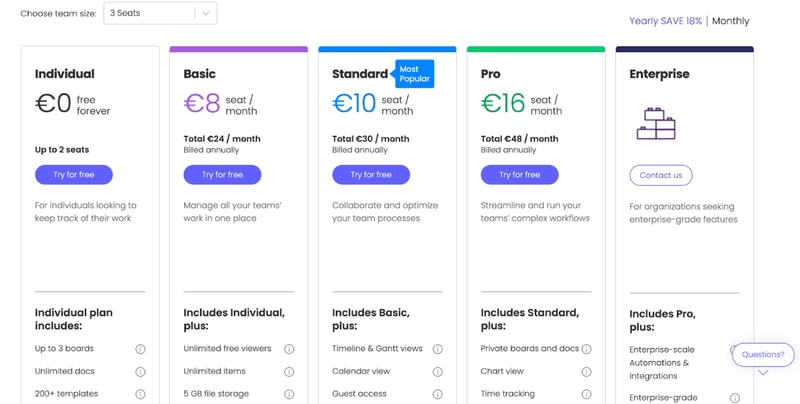
monday.com offers Individual (free), Basic, Standard, Pro, and Enterprise plans — see monday.com pricing for current rates.
The tool can get pricey if you have a big team. So if you’re not sure which plan works for your business, let’s break it down.
Individual
Monday.com’s free plan is a great choice for individuals that want some structure in their day-to-day life. But it’s not limited to personal use. The Individual plan works great for freelancers that want to manage their work and even small businesses. You can add up to 2 seats to your projects in the free plan.
Granted, you are limited by an Individual subscription. You can only create up to three boards, 1,000 items, and you only get 500 MB of storage. But it’s more than enough to test Monday.com and see if it’s right for you.
Basic
Monday’s Basic plan offers much more flexibility than the free tier. You can create unlimited items, you get 5GB of storage, unlimited boards, unlimited free viewers, and priority support.
However, you don’t get access to most of Monday’s automations with this plan.
Standard
The Standard plan probably has the best price-to-value ratio. It comes with guest access, more views, integrations, and automations, making it a better choice than a Basic subscription for most teams.
But if you want the full Monday.com experience, you’ll need the Pro plan.
Pro
Monday’s Pro plan offers 100 GB of storage, a full year of activity logs, unlimited guest access, time tracking, dependencies, a formula column, more views, and advanced security.
If you run a medium to big company, the Pro plan is probably the best for you.
Enterprise
Enterprise plans are custom-made for big organizations, so we can’t tell you how much it will cost, or exactly what features it will have. But we do know you’ll get premium integrations, a dedicated customer success manager, advanced security options, and better analytics.
User Reviews
People really like Monday.com. The platform has top scores across all big review aggregators.
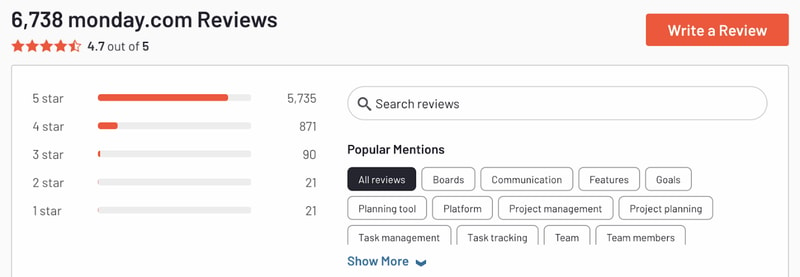
Monday gets praise for its advanced customization and great interface. But there are unhappy customers too. Most people that complained about the tool had problems with the slightly steep learning curve and higher pricing for big teams.
Pros
- Excellent and intuitive dashboards
- Fantastic for beginners
- Range of features like time tracking and budgeting
- Suitable for larger teams
- Supports extensive integrations for CRM, marketing, project management and more
- Visual boards allow for easy and accurate tracking
Cons
- Can be a steep learning curve for some users
- Can get pricey for larger teams
- Limited task dependencies, especially on the cheaper plans
Our biggest gripe with Monday.com was that you’re limited when creating task dependencies. You can only set them up via automations. Meanwhile, competitors like Asana let you take care of the same thing in 1-2 clicks. But it’s a minor issue and something that will probably be fixed in the future.
Quick Conclusion: Monday.com Review
monday.com has expanded beyond project management into a full work platform, offering monday CRM, monday Dev, and monday Service as dedicated products. The platform also includes AI-powered features for task automation, content generation, and project insights.
Monday.com does almost everything right. It has a strong project management suite, advanced customization, and some of the best integrations we’ve seen in project management software.
It is a bit hard to learn for non-techies. And it can be expensive for large teams. But in our opinion, these are minor inconveniences. Monday’s so good, they’re small hurdles to overcome.
You can see for yourself, Monday’s free to try:

Compare monday.com with other popular tools in the same category.
Monday has been so beneficial for my team and I. It makes everything so organized and saves so much time!
Truthfully, there is nothing I dislike about Monday. It has allowed us to take everything off spreadsheets and stay on Monday
The problem that it is solving is taking us off of Spreadsheets and keeping us in Monday which makes everything so much more organized
I like the ease of scheduling work to different team members and seeing where the work is and when it will be delivered. I love the automations to make it that much more foolproof and really easy to pick up too. We use this every day and it is an essential piece of our process.
It is a pain when it crashes (which we've experienced twice over the last year) as it's our schedule but it is quite rare and it'd be a problem with any service that we used.
We had a ramshackle set up before and having it in one, clear place makes it easier to organise and then share with the wider organisation

I love how versital it is and how we can use it for more than one thing. Projects, Customers, In Office Projects, Data tracking etc. Anytime I have a question Customer Service has always been quick to help. I live out of this system for my job so it's amazing and keeps me on track. We can also edit the templates easily and change them as our job times change
I have not found anything about Monday that is a bad thing.
They took our excel trackers and cut down on the amount of daily manual input we needed to do
I implemented Monday on 2 companies so far, I saw it growing from 2018-2019 and these are the strong sides of it. - General UX is fire! Very intuitive even for rookies. It's a love at first glance. You try it, you love it! - Implementation and administration are pretty easy compared to the competitors like Clickup, Asana, Jira etc.. - You can integrate it pretty much with everything and every third-party solution. - Scalable and dynamic. You can use it for all your daily operations, all the company departments, and also for your personal use. I love it because it simplifies the workflows, communication (fewer emails) and everything is tracked. - The company itself and Customer support are great. They just don't look at numbers but they evaluate case by case with conscience.
- Sometimes automations are limited and don't let you achieve what you need. - Dashboards are a bit clunky to set up and can be overall improved.
In my scenario, Monday simplified the project management, daily operations/tasks, and collaboration. Everybody on the team can see and track a task or a project without losing pieces via email. Also, the fact that you can integrate it with a third-party solution, you can reduce the swap time between different system as it acts as a central point of administration/control. The great advantage we also had was to track all our licenses and services expiration dates. We now know exactly when it's time to action on something without forgetting it.
Using Monday.com is a GREAT productivity tool for our hybrid team. All of our team members use Monday.com daily. It is our "hub" for all project, tasks backlogs, future plans, and note taking. As a team working from different locations we are able to remain organized. Monday.com gives us the flexibilty to layout project plans, track goals, organize weekly meetings, and so much more. Our team is also able to conenct Monday.com to various apps we use regularly helping to streamline our work with minial effort. Extra bonus- Monday.com is visually pleasing and customizable to our needs.
The recent updates to the organization options are not my favorite - BUT Monday.com has made it easy to rever to old settings which is great! No problems to report!
Monday.com has taken a mess of documents, files, and calendars and placed everything in one organzied space for our hybrid team. We are able to track goals and prject plan easily.

The sheer flexibility and openness to structure and define my data the way I want and the way I need to connect data across multiple boards, from customer insights, product features, roadmaps, development tasks, objectives and key results. As well as how I can effectively align and enable other departments towards the same milestone and goals by creating a 360 degree view of all ongoing work as well as dependencies across departments. Ultimate tool to create robust context and facilitate true decision making. I can organise, visualise, communicate and automate every I need to drive value and operational efficiency and predictability. No other tool comes close to this because they are all preconfigured solutions. Monday let's you build whatever solution you want on top of their platform. With literally no-code to some low-code.
There are some enterprise features I would like to see available at pro account levels.
Flexibility, visibility, progress and state at a glance across my entire portfolio. 360 degree view of my organisation not just my team. Alignment and enablement across all my teams because we can all work in the same product.
I absolutely love how user friendly it is. You barely need to take training to use it, because it is intuitive. The power it can bring to processes and businesses is unreal, and the use cases are countless. They have a raft of templates to get you started, or you can start from blank and build it to suit. We use it daily, and any time we've ever needed help, customer support is super quick, friendly and they even go the extra mile of doing up personalised video content to demonstrate how to do something - i've never had that level of detail from any other product's customer service. We don't integrate our deployment heavily, but those that we do have in place are virtually seamless.
The only gripe i guess i would have is that some features are reserved for Enterprise level pricing, which companies can be reluctant to drop the money on initially, but during implementation our Account Manager gave us a trial of Enterprise capabilities and was very flexible and helped us make the right decision for the company at that time.
We went from tracking work in flat, static busy excel spreadsheets that were prone to human error, with zero automation - to centralising everything including comms and approvals out of Monday.com and it's saved us hours of work, meetings, and we have a full audit trail for everything. Project management is a breeze with automations, and it gives us powerful out of the box reporting without any manual manipulation. Huge time saver.
We use it for our order processing. We like that it looks like a spreadsheet so we can do our order processing with ease. We use this everyday, and it was easy to integrate into our system. We love the Llama Farm.
We wish that it was more customizable sometimes. But we were able to make it work! I also wish that Monday came with more features instead of having to use a million integrations. Takes too much Time.
It solved our order processing issue, we were just doing everything from memory prior causing problems. Now we are much more organized, and spend more time getting back to our valued customers.
You can ise it across various departments as tracking tool for projects ,data management ,calculations and now even for meetings and various workflows.
It doesnt have a proper meeting template and one that is available is difdicult to customise
Ease in collborating and tracking tasks
Even our employees that struggle with technology find Monday.com so intuitive and helpful, they were more than willing to adopt
There is a little bit of customization that is lacking and limiting
It keeps our entire team on the same page - with several remote employees and employees on different shifts we all know what is due, what is upcoming, and what we are falling behind on
Monday can be utilized in so many ways to stay organized and communicate between multiple parties. It's keeps our department on the same page while working on different aspects of various projects.
Since there are so many ways to use the tools, I worry that I'm not utilizing it to it's full potential! Monday is great but it also requires you to keep up with the updates of the program to use it fully.
Working simultaneously on several projects with multple people can be diffifult to stay organized and communicate effectively. With monday, we can utilize status bars, time stamps, info boxes, and so much more to stay on the same page and keep progress moving in the right direction.
Very easy and intuitive to customize the automations. I bid on a bunch of government contracts every day and I needed some way to keep up with all the bids/due dates/production dates/awarded bids. Monday has proven to be the perfect platform for this.
Would prefer a better CRM setup. It seems a little "clunky" for importing contacts and connecting them to the board posts.
It's helping me keep all of my government contracts organized by agency, due dates, and bid amounts.
Its a great platform! I use it at work and it's super easy to navigate. It's a great way to have lists and calendars
The downsides of monday is that it could be quicker
Makes it easy to track projects
I love that everyone can see the changes pretty much instantaneously. Love the collaboration that comes with using Monday.com and how we can extend it to our contractors.
I wish the linking between boards was a bit better - right now the support team introduced mirrors to me so it looks a bit confusing. Wish there was also a way to see the edit history and what was changed (similar to google docs)
Collaboration in the remote world. We officially went remote and are finally able to have a set process that's also manageable with Monday.com; definitely recommend for small businesses looking to get organized while scaling!
Monday has really brought our team together and keeps everyone on the same page. All clients and products live in one place.
We are not a huge fan of the time-tracking analytics. We wish there was more to it. More ways to filter the data etc. We ended up using a TT platform in addition to monday.com
All clients, vendors and projetcs are now in one place! Prior to monday.com all communicaitons and files lived in email. Which was invonvenient when muntiple people are working on the same project.
I'm so happy I recently discovered monday.com. There's so many different features, and the platform is so easy to use and navigate. It's allowed me to stay on top of current projects and has helped me easily assign/delegate certain action items to various members of my team.
I really don't have any negative feedback.
Helping easily delegate action items.
je trouve que le prix est accessible et que l'on peut travailler dessus à 10 comme à 1000, c'est aussi facile
Le setup des boards peut être un peu dur (mais parce que j'ai fait des boards complexes), sauf si on a des taches simples
Avec monday on cherche à gagner du temps et à avoir au quotidien des bénefices dans la relation client. Tous nos clients, de tous les secteurs, sont connectés à la plateforme. Nos équipes aussi. On a 50 utilisateurs.
It's UI is very good and easy to use, we use it every day.
Not being able to get pro without paying for 3 seats
Monday allows us to keep track of every project and analyze our bottom line.
The several filters and information we can add/ see is incredible. I can customize everything as I need
For now, there is nothing wrong or bad with Monday.com
It is solving the barrier of communication between workers, because we all can access the information at any time
Easy to understand and functional, you can customise the dashboards, reporting and whatnot
I like everything here, if you use it well nothing will go wrong
Resource management, project tracking
It keeps everything nice and neat. You can share tasks and keep everyone close together in remote environments.
I love it. I just wish i knew how to use all of it.
collaberating in remote work environment
I've been using Monday.com for over five years. Whenever I take a position at a new company, Monday.com is my preferred project management system. For context, I'm a Marketing Director, and year after year, I discover more functionality to be incorporated into my workflows. I'm a happy customer and advocate!
The pricing continues to increase for the same set of tools.
Project management for the marketing team.
monday.com has allowed our company to scale by automating mondane tasks, give quick assignments, & visually have oversight to many projects at a time. It's very easy to cross-utilize information across multiple areas. It also allows for nearly endless programming & creative capabilities. If you can envision how a workflow should be, it's likely that monday.com has a path to get there.
If there's any data entry needed, it's not as user friendly as Excel or Google Sheets. And be careful if making the data pool too large. The board runs slow & reporting becomes difficult.
Helps to create workflows & automations that streamline routine tasks & projects. This allows us to stay organized & consistent in deliverables.
Monday lets my team flexibly organize, transparently streamline, manage complicated localisation projects with its intuitive platform. It's so easy, but absolutely professional.
Large and ongoing localization projects can be somewhat complicated to set up, as we have to dedicate label columns per language, marking done/working on it/stuck etc. It's fine for the most part, but scaling up inevitably suffocates the experience. That being said, it works better than other platforms and we like using monday anyways.
Monday.com allows us to manage otherwise unmanageable levels of tasks, that are otherwise lost and/or fall through the cracks. We need everything to be visible, prioritised, and all eyes on the projects - whenever we need. The flexibility that monday.com offers is a significant asset to us. We can collaborate seamlessly, integrate with other apps and boards, and really make sure that our tasks are managed with priority and with confidence.
My favorite thing about Monday.com is the ability to easily delegate leads and tasks to the appropriate staff. Implemenation of routing was very easy and we were able to integrate our webforms as well. We use Monday.com all day everyday to make sure that every team member knows exactly where every project, opportunity and customer support request stands.
So far, we haven't determined any specific downsides to Monday.com
Monday.com solves the following for us: Keeping track of opportunites in our pipeline. Projecting cash flow based on tracking opportunities in our pipeline. Ensuring that projects are moving forward, meeting milestones and are completed in the timeframe in which they are promised. Keeping track of daily tasks that are individual and personal to each staff member.
I love how customizable Monday.com is. I can make it work for my project management needs easily. The automations are another feature I really appreciate about this platform. Their customer service is superb, our rep (Jess Ciufia) is awesome and available to support us in optimizing our use of Monday.com.
To be honest, I haven't encountered a situation that I didn't like or appreciate about the platform. When I'm learning to do something new, their help library is extensive and I love many articles have videos.
It helps our team project manage our campaigns in one place where we all have access and visibility to each other's work at any time. We also use it to collaborate with external freelancers.
How flexible and modular it is. This gives endless possibilities for building dashboards for project management where several team members can collaborate
Sometimes I felt the dashboards with more information were slower when interacting with them
Managing multiple projects and leads at the same time. Be able to assigne and track them. Be able to add specific information to each project in order to have a complete view of it
Monday.com allows any project or task to move from an idea to actuality. It allows you to set timelines, expectations, upload documents, and assign users to the project to have collaboration and see actual progress.
My only complaint is that I wish Subitems could have Subitems. Sometimes you just need one more layer of tasking within a task or project.
Our company is all work from home or has employees in different countries. Monday allows real-time updates to show on projects that develop our business regardless of where we all are, and without a huddle or meeting needing to be scheduled. Meetings are now for next steps instead playing catch up from the last meeting.
With neat color coding, you can customize many aspects of the boards, like due dates, files, briefs, categories and more. You can also set up specific notifications for status changes. It's excellent for simultaneously managing a diverse group of projects, campaigns, and tasks.
When a file is posted to a campaign on a board, there's no automatic update or notification to let others know it's there. However, this can be resolved by posting the file in the update itself, which works well as long as others are informed about how the system works.
Dividing types of work into boards helps our team stay on track with what projects and tasks need to be completed, even when we're on a tight deadline. I've found that productivity goes up when everyone knows what's on the boards and who's assigned what; plus, it's easy to check details, files, and updates at a glance and give precise feedback.
I love working in it and really enjoy seeing the updates. It is very useful to keep everyone up to date on ongoing projects and visualize data.
The biggest issue for me at the moment is having to convert currencies by myself, and not having the possibility of having formulas on the rows (just for the columns) or rows that refer to eachother like a spreadsheet. I would also love to have it integrate more seemlessly to Shopify and GA4 to ensure the data I'm inputting is fully correcy.
It helps me keep up to date with projects, KPIs and reporting and sending automatic emails to the right person.