Unclaimed: Are you working at Canva?
Canva Reviews: 4.7/5 — Highly Rated
Canva is an easy to use graphic design and video editing platform that lets users create, design, and publish original artwork using a simple drag-and-drop editor. The platform comes with thousands of design templates and layouts for numerous projects, including social media posts, presentations, videos, posters, flyers and more.
Canva is also often used as Photo Editing of choice in Marketing and Ecommerce tech stacks.

| Capabilities |
AI
API
|
|---|---|
| Segment |
Small Business
Mid Market
Enterprise
|
| Deployment | Cloud / SaaS / Web-Based, Mobile Android, Mobile iPad, Mobile iPhone |
| Support | 24/7 (Live rep), Chat, Email/Help Desk, FAQs/Forum, Knowledge Base, Phone Support |
| Training | Documentation |
| Languages | English |
Canva Pros and Cons
- Simplicity: Canva is delightful to use. You can search for stock images and videos in seconds, drag and drop elements into place, and experiment with a huge range of filters and effects.
- Free plan: If you’re not sure how many visual assets you need yet, you can start with the free plan and work your way up.
- Versatile: You can create a lot of different kinds of graphics easily with Canva, including logos, Facebook posts, email marketing templates, and landing pages.
- Convenient easy-to-use environment for beginners
- Thousands of templates, icons, photos, fonts and other assets
- You don’t get the full control with Canva that you get with more advanced marketing tools. There aren’t as many layers as possible and advanced features to explore.
- Can be a little slow as a browser-based product.
- Very limited editing options
- No layering or re-adjustment options


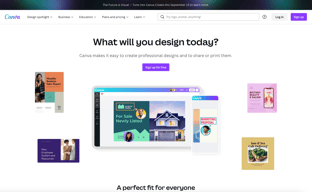







Are you a non-designer looking for graphic design software? If you need to create designs for your business, Canva is one of the top rated tools to choose. In this post, we’ll explore Canva’s pricing, features, and alternatives.
What is Canva
Canva is an online graphic design tool used by over 170 million monthly active users to create visual content for offline and online marketing. Over 9,400 Capterra reviewers have given Canva an average rating of 4.7 out of 5 stars.
Canva offers hundreds of thousands of templates and elements you can use to create designs for personal or business use. Customize your visual content with your brand kit and media from your own library.
How Much is Canva
Canva offers Free, Pro, and Teams plans – visit Canva’s pricing page for current rates.
The Free plan includes the following.
- Over 250,000 free templates.
- Over 100+ design types including business cards, presentations, and social media posts.
- Free photos, logos, fonts, photos and graphics.
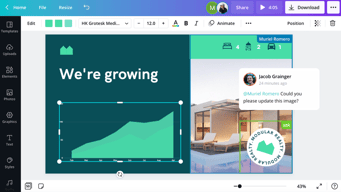
- Share, collaborate, and comment on designs with a team.
- Save your designs with 5GB of cloud storage.
- Share designs to multiple platforms including Instagram, Facebook, X, LinkedIn, Pinterest, Slack, and Tumblr.
The Pro plan includes everything from the Free plan plus the following.
- Over 100 million premium stock photos, videos, audio and graphics
- Over 610,000 premium and free templates with new designs daily
- Up to 100 Brand Kits with your companies colors, logos, and fonts
- Access to Background Remover and Magic Resize.
- Create templates from your own designs.
- Save your designs with 100GB of cloud storage.
- Schedule your social media designs on up to 8 platforms including Instagram, Facebook, X, LinkedIn, Pinterest, Slack, and Tumblr.
The Teams plan includes everything from the Pro plan plus the following.
- Use brand controls to manage your team’s access to apps, graphics, colors, logos, fonts, and uploads.
- Get approval on your designs with built-in workflows.
- Control what your team can edit and stay on-brand with template locking
- Save your designs with unlimited storage.
- Log in with single-sign on (SSO) and have access to 24/7 Enterprise-level support.
How to Use Canva
To get started on Canva, you will need to create an account using your email address, Google, Facebook, or Apple. You will then choose your account type between student, teacher, small business, large company, non-profit, or personal. Templates and additional resources will be recommended based on your chosen account type.
You can choose to start a free trial of Canva Pro or begin with the free version to see if it’s the right graphic design tool.
Designing with Canva
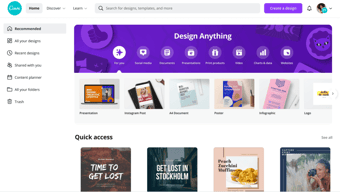
For your first design, Canva will suggest different post types to choose. Based on the type of account you set up, you will see template categories like social media posts, documents, presentations, marketing, events, ads, launch your business, build your online brand, etc.
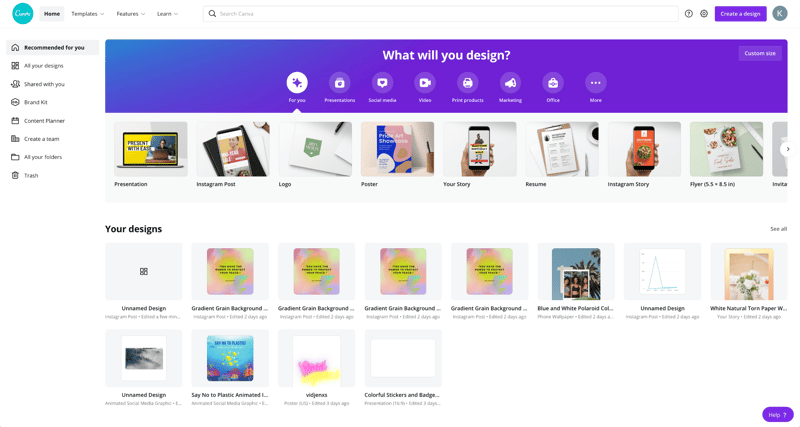
Begin by choosing the type of post you want to create or searching for something more specific. Search by social network name, for example, to see a list of templates by post type on each network.
Templates
Next, you will be able to choose a template. Templates come ready to go, with customizable photos, text, and additional elements.
You can start your design by choosing a template, searching for a template, or working with a blank template.
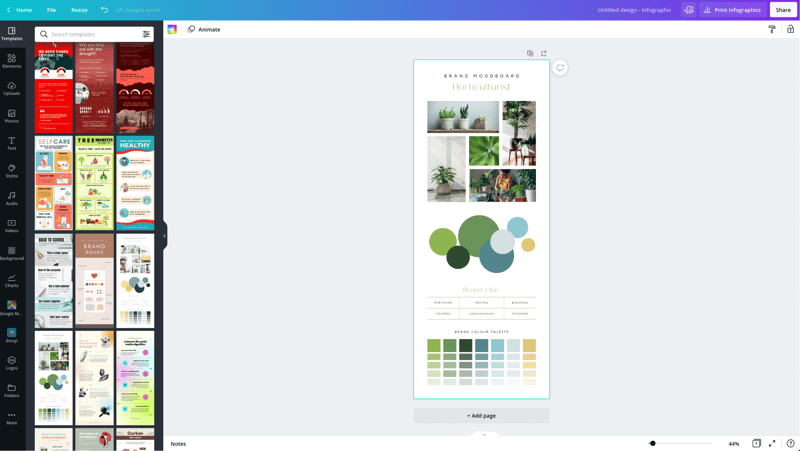
Canva has a lot to choose from, so start with a specific search. If you’re in the horticulture business, you’ll find plenty of templates for a variety of post types just by searching for plants.
You may not find the perfect template, and that’s ok. Remember there are plenty of ways to customize any template. So choose the best fit and move on to Elements.
Elements
Inside the Canva designer, the Elements tab gives you access to lines and shapes, graphics, photos, videos, audio, charts, photo frames, and photo grids. You can use the search box on the Elements tab to search everything on Canva.
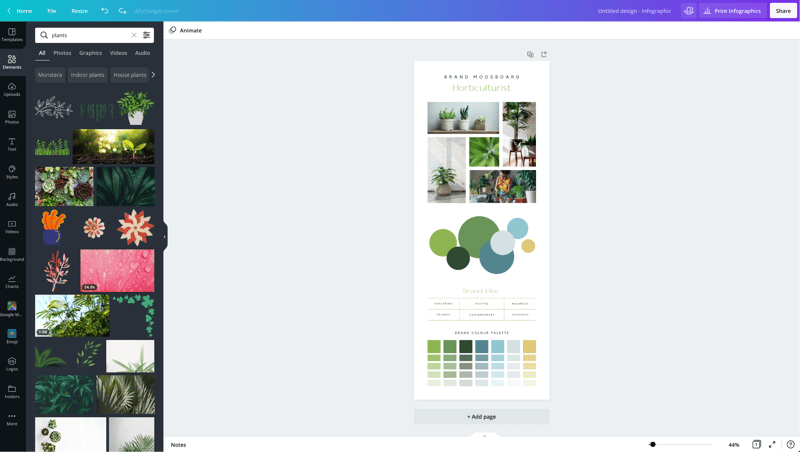
Again, Canva has a large library of elements to choose from, so be specific in your search query. You may also want to search in the following tabs to see various elements separately in the search results.
Photos
The Photos tab allows you to choose from millions of free, paid, and Pro-only stock photos.
You can replace photos on your templates to create a new look or to match a particular template to your industry.
Alternatively, you can use photos from another stock photography site or your own photos. Simply upload them in the Uploads tab.
Once you choose a photo, you can use Canva’s photo editing features to add filters, adjust the photo’s settings (brightness, contrast, saturation, etc.), crop, animate, and change the transparency.
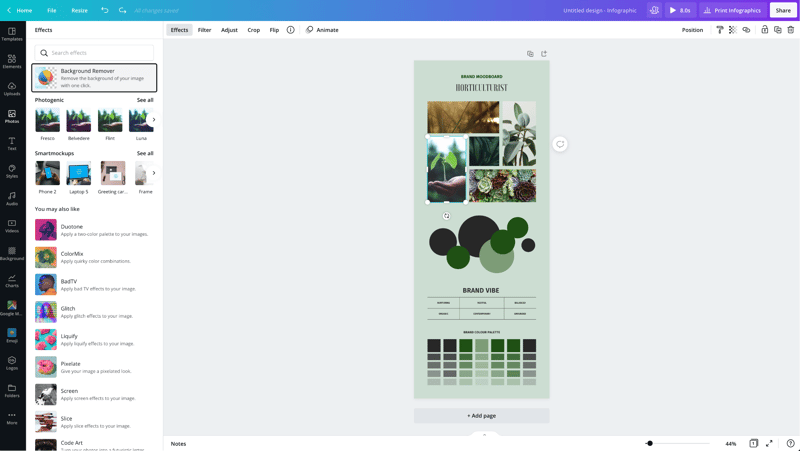
Canva Pro subscribers have access to the Background Remover. This will remove backgrounds from stock photos in the Canva library as well as photos you upload to the Uploads tab.
Canva has also introduced Magic Studio, a suite of AI-powered tools including text-to-image generation, background removal, and AI-assisted writing.
Text
The Text tab allows you to add headings, normal text, and fancy graphical text to your design.
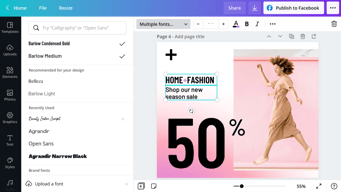
When you click on the text on a template, you’ll see options to adjust the font, font size, color, format, spacing, text effects (like shadows), and change the transparency.
Canva Pro subscribers can set brand fonts via the Brand Kit or the Styles tab. Enterprise-level controls will ensure that your team keeps visual content on brand.
Audio
Creating an animated image or video? Search for audio elements to add to capture user’s attention in social news feeds.
Alternatively, if you want to use audio from another stock site or your own audio tracks, you can upload them in the Uploads tab.
Video
Want to create video content? Choose from thousands of free and Pro-only stock video clips. You’ll find videos that range from a few seconds to two minutes long.
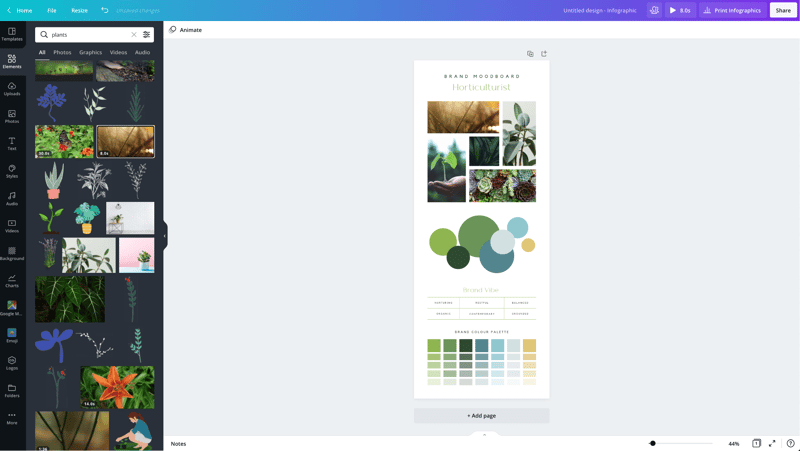
Similar to photos and audio, if you want to use videos from another stock site or your own videos, you can upload them in the Uploads tab.
Once you choose a video, you can use Canva’s video editing features to trim the video, flip it, and change the transparency.
Backgrounds
In the Background tab, you’ll find free photos specifically geared to act as backgrounds on your designs. Change out the background on a template to give it a more custom feel.
Styles
The Styles tab allows you to change the look and feel of your template quickly with different color palettes and font combinations. If you have a Canva Pro subscription, you can upload your brand’s custom colors and fonts to keep designs on brand.
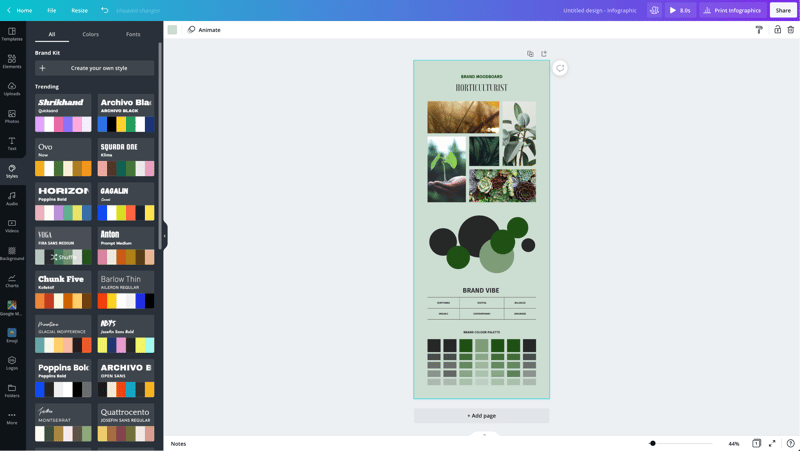
Logos
If you have a Canva Pro subscription, you’ll have a Logos tab. Here, you can upload variations of your brand logo to use throughout your designs.
You can also create logos with Canva. Note that you can’t trademark logos with stock content in them.
Publishing with Canva
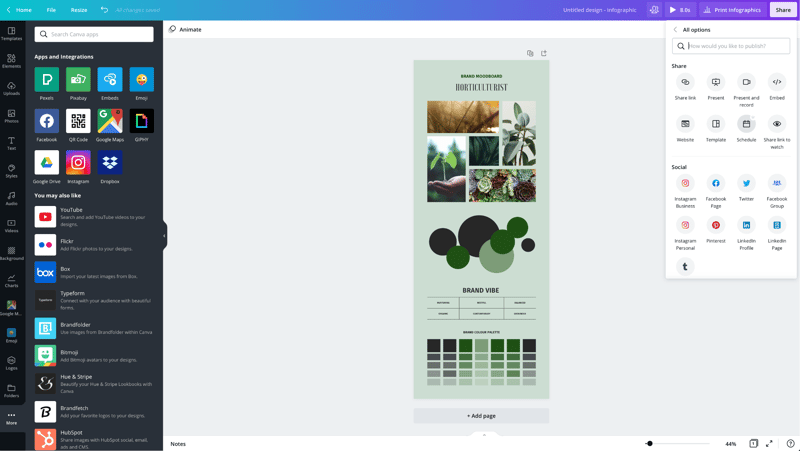
Free users of Canva can download their designs or share their designs to multiple platforms including Instagram, Facebook, X, LinkedIn, Pinterest, Slack, and Tumblr.
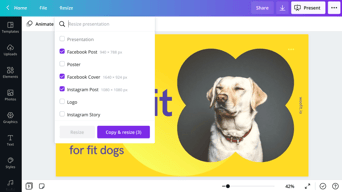
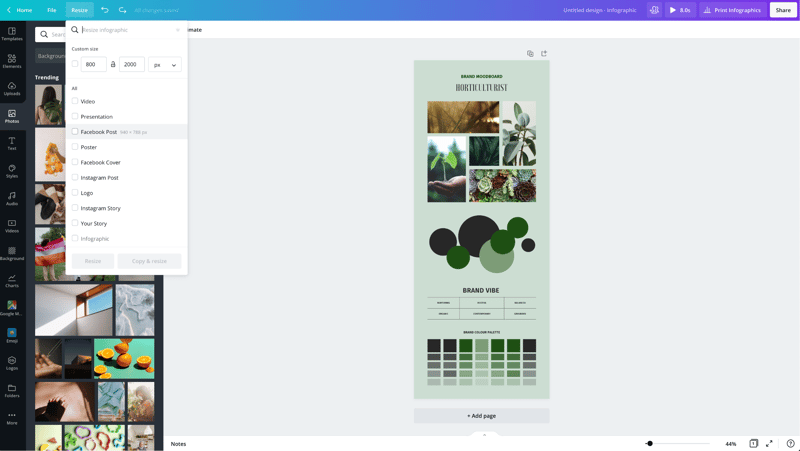
Canva Pro subscribers can use the Magic Resizer to create multiple post formats from one design. For example, you can start by designing an Instagram post. Canva’s Magic Resizer can resize it for posts on other networks, Stories, Reels, and other formats.
Canva Pro subscribers can also use Canva’s Content Planner to schedule updates to up to eight profiles/accounts on Instagram, Facebook, X, LinkedIn, Pinterest, Slack, and Tumblr.
Canva Teams
Canva Pro subscribers can work in teams to improve the visual content workflow. Designs can be created inside Canva and sent to the appropriate team members for approval. Teams can make comments, edits, revisions, and keep track via the version history.
Canva Print
If you create a design for offline marketing, Canva has a Print division to compete with companies like VistaPrint. They will print your designs on banners, wall art, mugs, t-shirts, business cards, stickers, invitations, cards, flyers, and more.
Canva Print is perfect for any business that wants customers to do some word of mouth marketing for them. Create designs people would want to stick on, wear, etc. Hand out business cards that people want to keep and share.
Canva Apps
Canva offers their own mobile app on the Apple and Google Play stores. Canva has earned a 4.9 out of five stars from over 3 million Apple users and a 4.7 out of five stars from over 188,000 Google users.
With that said, the mobile app doesn’t have all of the features you’ll find on the desktop browser version. Fortunately, you can access most of them via a mobile browser by going to the Canva website and bypassing the app.
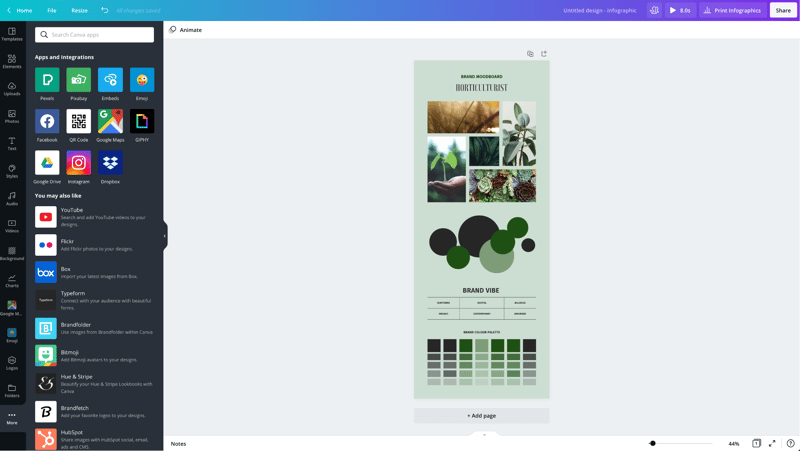
In addition to mobile apps, Canva has apps and integrations that allow you to access elements from third parties. You can add maps from Google Maps, Emojis, photos from Google Drive and Dropbox, YouTube videos, Flickr photos, Bitmojis, and other popular visual content elements.
Canva Pros and Cons
Review networks like TrustRadius allow people to leave specific pros and cons about their Canva experience. Amongst the over 500 reviews, here are some of the highlights from the pros and cons users have identified.
-
Pros :
-
An easy to learn and use interface
-
It allows people with limited graphic design skills to create professional graphics
-
Tons of templates so you never have to start from scratch
-
Branding kits to keep teams matching the brand colors and fonts
-
Ability to create visual content on the go
-
Templates that cover a wide variety of uses and networks
-
The ability to search for royalty free images, video, and audio without another service
-
Cons :
-
Seemingly basic elements (graphics, shapes, etc.) and features are Pro-only
-
Elements that fall outside of the design area are tricky to retrieve
-
Newer features (like Canva presentations) need work
-
The UI can be cluttered
-
Users of Adobe tools may find Canva features limited
-
Would like the ability to work with vectors, especially on logos
-
No analytics when sharing designs
-
Expensive enterprise pricing
-
The artboard could be larger
-
Everyone has access to templates/elements, meaning your graphics may not be as unique
Canva Alternatives
If Canva doesn’t sound like the right fit for you, you may be interested in trying the following Canva alternatives.
Adobe
Adobe has a suite of tools for beginner to advanced level graphic designers, photo editors, and video makers. One tool, Adobe Express, is a Canva-like tool that makes it easy to create social graphics and videos. They offer a free plan and paid plans with premium features.
Those with graphic design skills may prefer tools like Lightroom and Photoshop for photo editing, Adobe Illustrator for vector graphics, or Adobe Premiere Pro for video editing. Alternatively, you can get access to all Adobe tools through the Creative Cloud All Apps plan.
PicMonkey
PicMonkey is a Canva alternative that boasts better photo editing features and no hidden fees for premium templates or elements. With that said, PicMonkey does not offer a free plan. Their pricing starts at $7.99 per month for basic features.
VistaCreate
VistaCreate (formerly Crello) is a free graphic design tool that is similar to Canva. It includes thousands of templates and features like the photo background remover and brand kits. The app on the Apple store has an average rating of 4.7 stars from over 600 users.
Piktochart
Piktochart is a graphic design tool that focuses on infographics, presentations, and reports. Their goal is to help you turn data-heavy content into a compelling visual story. They offer a free forever plan plus pricing for premium features starting at $24.17 per month.
GoDaddy Studio
If you are a GoDaddy customer, you can access their free tool, GoDaddy Studio. This tool gives you access to thousands of customizable templates.
Similar to Canva, no design skill is necessary to create professional graphics. The app on the Apple store has an average rating of 4.8 stars from over 94,000 users.
Canva FAQ
Q: Is Canva for free?
Yes, Canva does have a free plan that you can choose to create professional designs.
Q: Does Canva have a watermark?
No, Canva does not place a watermark on your finalized images. You will only see a watermark on copyrighted stock elements in the Canva library unless you purchase the media or a Canva Pro or Enterprise subscription.
If you see a watermark on a previous design, it is because you had a Pro subscription and used a Pro-only template or element.
Q: Can I use Canva for free for my business?
Yes, all free elements included in the Canva free subscription can be used for commercial and non-commercial use.
Q: What is Canva good for?
Non-designers can use Canva to design a wide variety of visual content for online and offline marketing. They include social media graphics, presentations, business cards, reports, infographics, and much more.
Q: Is Canva better than Adobe Photoshop/Illustrator?
Canva markets itself as an easy to use design tool for non-designers. Adobe Photoshop and Illustrator are geared towards intermediate to advanced level photo editors and graphic designers.
Q: Is Canva good for making videos?
Yes, Canva offers an easy to use video tool for visual content creators who aren’t video experts.
Q: Is it worth paying for Canva?
Definitely, when you consider the number of Pro-only templates and elements. You can always start with the free version or cancel after the 30-day free trial if you’re unsure about the platform.
Q: Can I trademark a logo created in Canva?
Yes, unless it has any stock elements in it.
Q: Can I sell content created in Canva?
Yes, if it doesn’t include unaltered Canva media. You can read more about licensing, trademarks, and commercial usage of Canva content here.
Useful Canva Resources
Canva offers several free resources for designers.
- If you need to do simple edits, Canva has a free photo editor.
- Canva’s Color Wheel allows you to preview what colors go well together.
- The Palette Generator will generate a set of colors from an image you upload.
- The color meanings and symbolism guide can help you find the right meaningful color palette for your brand.
- The design size guide gives the current best sizes for graphics on social media, video, presentations, and more.
Additional Resources
If you want to five even deeper into graphic design, Adobe offers some insightful free guides as well. There are tips for various design types (tattoos, backgrounds, newsletters, logos, etc.) and use of graphic design principles, colors, and symbols.
Canva Review: Conclusion
Overall, Canva is an excellent solution for creators who need visual content. If you’re an experienced graphic designer, you will find their platform lacking in customization and other features – particularly vectors. But if you don’t have a lot of design experience, you’ll find Canva easier to use than advanced graphic design tools like Adobe Photoshop or Illustrator for most projects.

Compare Canva with other popular tools in the same category.
Canva is a really good graphics designing designing platform. It certainly feels like it built with creativity in mind. In my graphics design work I use Canva to design posters and images for my organisation. One of main advantage of Canva is it's template tool. It has thousands of templates and on top that everything in the template can be edited. It has formats for all major social media platforms and many different types of documents. I like that Canva has everything for a creative designer. It has stock photo library, shapes and illustrations and even animated stickers which helps create some stunning graphics for our clients. Also on the plus side Canva mobile application also has the same features that can be found on the web version. So it's very easy to design graphics either in the web or in the mobile app. Lastly when exporting the final output Canva provides many number of options to choose from. I use the PDF export option because it is very quick and high quality.
Although Canva has a stock photo library and illustrations but most of them can look similar sometimes with just a little tweak. It also doesn't have many effects, overlays to apply to photos. It has no collaboration support and tema work in a design is not possible.
Designing graphics can be very quick with Canva. It has all kinds of templates and so defining custom width and height is not necessary. Plus with the availability of stock photos and illustrations I can be really creative with my designing work.
good templates for presentations and resume.
A lot of problem with the scaling effect.
Not a lot of benefits
Style of templates and the amount of templates available.
It will never save any of my edits. The program is absolutely terrible, I tried following all of their technical recommendations and absolutely nothing worked. I tried to get someone else to do the same edits on their computer and nothing was saving or working. Its constantly deleted and not saving the information. I will never use this program again. A complete waste of time, it took me over an hour to do a very minor edit (copying and pasting 2 sentences). They have no help line to reach out to if you are having technical problems. All around, horrible experience. I've tried using it multiple times on different computers and nothing has worked.
It will never save any of my edits. The program is absolutely terrible, I tried following all of their technical recommendations and absolutely nothing worked. I tried to get someone else to do the same edits on their computer and nothing was saving or working. Its constantly deleted and not saving the information. I will never use this program again. A complete waste of time, it took me over an hour to do a very minor edit (copying and pasting 2 sentences). They have no help line to reach out to if you are having technical problems. All around, horrible experience. I've tried using it multiple times on different computers and nothing has worked.
Creating stuff was good... can't complain
We emailed Canva support before the end FreeTrial date to ask them to cancel our subscription. When the Free Trial subscription had ended our request was fulfilled - 6 hours later. Meaning that they took the first months subscription from our credit card. Upon Contacting Canva they refused to refund the money, even though THEY had failed to cancel the subscription at the time of our email.
creating artwork for business stuff.
There are quality photos; however, you can find equivalent quality elsewhere.
The lack of customer support. I had an issue with a watermark and a photo not uploading to Facebook. I did hours of troubleshooting and trying to find a way to contact the company. Finally, after contacting them on Facebook, they said they were aware of the issue and refused to refund my money. I will never use this company ever again.
Marketing. Do not use CANVA
Everyone in the team has access to the design, because Canva is an online design platform.
Canva has a lot of bugs, which can be very annoying and time-consuming. Some of the bugs I FREQUENTLY face with include: suddenly unable to change text's color (despite my efforts to refresh the page many times), texts suddenly getting cramped for no reason (again, I have to refresh the page many times in vain), texts suddenly get dispersed and out of your background page, texts of the same size but look smaller/bigger than each other (for instance, when I type "Hello" of size 12pts, and make a copy of the text "Hello", there will be two texts "Hello" of the same size 12pts; however, one actually is bigger than the other and you will notice this when you juxtapose them together, or lay them over each other). In short, there are so many bugs that I don't remember them all. The only reason I'm still using Canva is because my boss wants everyone in the team has access to what I design, and thus all of us can plug information in the design.
We create social media graphics, e-vites, and fliers on Canva. A good thing about Canva is that it has basic design tools (such as add photos, add texts, add shapes, change colors and opacity, etc) for free. These tools are very easy to use, which can be helpful to non-designers. However, like I said earlier, using Canva can be very time-consuming because of many bugs coming in the way. Sometimes you will have to refresh the page for ten times to get the right text/color/size.
I used this to come up social media graphics. I think it was easy to use and it was free, I also liked their selection of fonts.
It worked too slowly. A lot of graphics were not free. Your graphics' uniqueness is limited. They started charging for this, and I didn't think it was the best thing, so I stopped using it - I rarely used it when it was free.
Before I started on Adobe Suite, I used this for our branding on social media. It was recommended to us by Constant Contact actually. I have since, moved far away from Canva. I do not use this anymore.
simple tool to use, it has an easy to use interface.
lacks sharp image quality, I created a logo using canva fonts, I downloaded at the highest quality, when I uploaded to the site it was blurry.
not really any benefit so far.